When you first open Canva or Figma, it feels like standing in front of two very different toolboxes. One promises speed and simplicity. The other offers depth and control. But if you’re here, you probably want to know something deeper: which tool actually solves your design challenges most effectively?
Many professionals face the same struggle. Marketers and small business owners need quality visuals quickly. Designers and product teams require precision, collaboration, and scalable workflows. Choosing the wrong tool means wasted hours or limited creative results. It’s frustrating for anyone who’s had to redesign branding at the last minute or iterate on web layouts with developers.
In this blog, we’ll give you a side-by-side comparison of Figma vs Canva. We’ll discuss where each tool excels, falls short, and why one might fit your specific projects better than the other. Let’s dive in!
Canva vs Figma at a Glance
Below is a quick comparison table that highlights key differences between the two popular web design tools.
Parameter
Figma
Canva
Primary Use
UI/UX design for websites, apps, and digital products
Marketing visuals, social media, presentations, branding, and print
Ease of Use
Moderate learning curve, built for professionals
Very easy, beginner-friendly
Design Control
High control over layout, spacing, and components
Limited control, template-driven
Templates
Basic UI kits and wireframes
Extensive library of ready-to-use templates
Customization
Deep customization with design systems
Customization within template limits
Collaboration
Real-time, design-focused team collaboration
Simple collaboration for content approval
Prototyping
Built-in interactive prototyping
Not meant for product prototyping
Developer Handoff
Strong inspection tools and specs for developers
Not suitable for developer handoff
Best For
Designers, product teams, developers
Marketers, small businesses, non-designers
Pricing
Free plan available; Paid plans start around $5/month for Collab seat
Figma is a professional design tool used to create app screens, website layouts, and complete UI systems. It works in the browser, so you don’t need any additional installs or expensive hardware to get started. What makes Figma stand out is how it supports real teamwork. Designers, product managers, and developers can all work on the same file simultaneously.
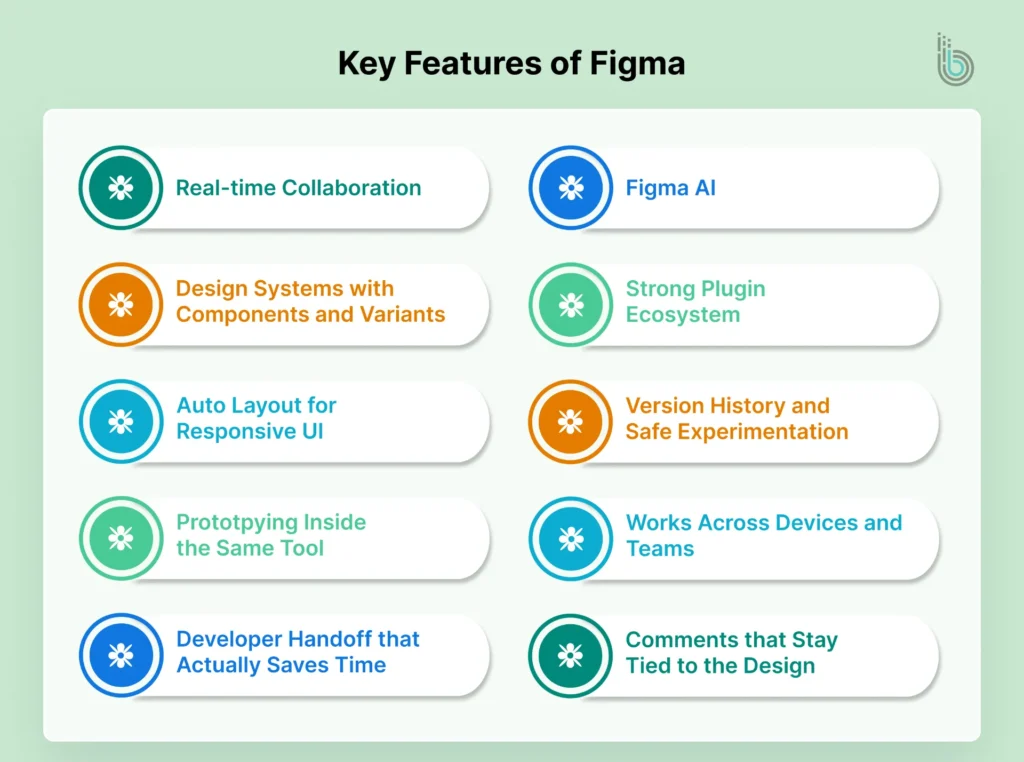
Key Features of Figma
Figma is built to keep design work clean, consistent, and easy to transfer.
Real-time Collaboration: You can design while others watch, comment, or edit. This cuts long feedback loops and avoids “which file is final?” confusion.
Design Systems with Components and Variants: Instead of rebuilding buttons, cards, and menus each time, you create reusable components with variants. Variants help manage states such as hover, active, and disabled, as well as sizes. This helps the products stay consistent.
Auto Layout for Responsive UI: Auto Layout helps designs behave like real UI. Text expands, spacing stays balanced, and sections resize cleanly. It’s beneficial when designs move to development.
Prototyping Inside the Same Tool: You can turn screens into clickable flows without exporting anything. It’s perfect for testing user journeys, stakeholder demos, and quick approvals.
Developer Handoff that Actually Saves Time: Devs can inspect spacing, colors, typography, and measurements directly. They can also export assets without having to chase the designer. This reduces misunderstandings and rework.
Comments that Stay Tied to the Design: Feedback lands exactly where it belongs. Teams can point to the exact button or layout issue.
Version History and Safe Experimentation: Figma tracks changes so you can roll back when needed. This is useful when clients change direction or when a redesign goes sideways.
Strong Plugin Ecosystem: Plugins speed up work in creating icons, illustrations, accessibility checks, dummy data, copy tools, UI kits, and more. It helps you move faster without cutting corners.
Works Across Devices and Teams: Being cloud-based, it naturally fits remote teams. It also simplifies sharing designs with clients who don’t want to install software.
Figma AI: Handles the boring stuff for you. It can instantly rename layers, fill in designs with real-looking text, and translate your layouts into different languages. You can also use “First Draft” to turn a simple written idea into a ready-to-edit design layout.
Figma Pros & Cons
Pros
Built for real UI/UX design, from wireframes to pixel-perfect screens
Best-in-class collaboration, with live editing and clear commenting
Strong design systems with components, variants, and reusable patterns
Prototyping feels natural, keeping your workflow in one place
Developer handoff is smooth, with inspect tools that reduce guesswork
Cons
Steeper learning curve if you’re new to design tools
Can feel “too serious” for quick social posts and simple creatives
Advanced workflows require practice (Auto Layout, variants, constraints)
Offline work is limited compared to traditional desktop software
Large files can become heavy if your structure is messy or unorganized
In short, if you need structured UI design and clean collaboration, Figma is the stronger tool.
Who is Figma For?
UI/UX designers building apps, websites, and product interfaces
Product teams that need fast feedback and clean iteration cycles
Startups designing MVPs and releasing updates every few weeks
Agencies managing multiple clients, pages, and brand guidelines
Developers who want clear specs and fewer back-and-forth calls
Design leads building scalable design systems that grow with the product
Beginners learning UI design seriously (not just poster-style design)
Simply put, Figma is a browser-based tool for designing websites, apps, and UI systems. With components, Auto Layout, prototyping, and developer handoff, it’s ideal for designers, startups, and agencies. So, if you’re ready to scale your business with a visually appealing and high-converting eStore, choose our eCommerce website design services.
What is Canva
Canva is a beginner-friendly design tool made for creating polished visuals quickly. It’s built around templates, so you can design posts, flyers, presentations, and ads. It’s easy even for a beginner with no idea of design rules. You don’t need to start from a blank canvas unless you want to. Canva is the fastest way to make content that looks “professionally made” in minutes.
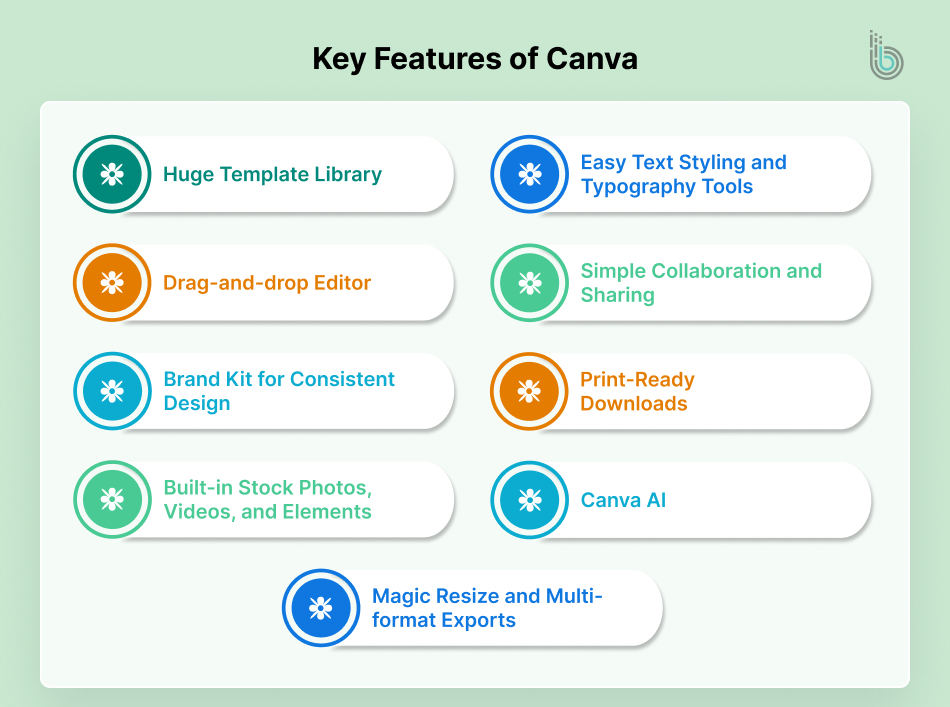
Key Features of Canva
Canva is designed for speed, simplicity, and repeatable content creation.
Huge Template Library: You get ready-made designs for social media posts, YouTube thumbnails, resumes, business cards, menus, and more. This saves time when you don’t want to build layouts from scratch.
Drag-and-drop Editor: Everything is simple to move, resize, and adjust. You can build clean visuals without needing advanced design skills or shortcuts.
Brand Kit for Consistent Design: Store your brand colors, fonts, and logo in one place. This helps your posts stay consistent, even when different people create content.
Built-in Stock Photos, Videos, and Elements: Canva gives quick access to graphics, icons, backgrounds, and short clips. You don’t have to hunt across different websites for basic assets.
Magic Resize and Multi-format Exports: Create one design and quickly resize it for different platforms. This is perfect when you need the same message for Instagram, Facebook, and LinkedIn.
Easy Text Styling and Typography Tools: Canva makes fonts look good with minimal effort. It also offers ready-made text combinations that work well together.
Simple Collaboration and Sharing: You can share designs with teammates, collect comments, and avoid messy email attachments. It’s smooth for small teams and fast approvals.
Print-Ready Downloads: Canva supports high-quality exports, such as PDFs, for flyers, brochures, and posters. Useful when you’re designing for both digital and print.
Canva AI: Makes designing faster with tools that do the work for you. It can generate images from descriptions, remove backgrounds with a single click, and even write or summarize text. You can also use “Magic Design” to turn a simple prompt into a finished, ready-to-use layout.
Canva Pros & Cons
Pros
Extremely easy to use, even if you’ve never designed before
Templates save hours and help you get good results fast
Perfect for social media, flyers, presentations, and ad creatives
Built-in assets like icons, photos, and elements reduce extra work
Quick resizing and exporting make multi-platform content simple
Cons
Limited control for detailed UI work and complex layouts
Designs can start looking “template-ish” if you don’t customize them well
Not ideal for building complete design systems or scalable UI libraries
Precision tools are basic compared to professional design platforms
Some of the best features and tools are only available in paid plans
If you need fast, good-looking content with minimal effort, Canva is the smarter pick.
Who is Canva For?
Small business owners creating menus, promos, posters, and ads
Social media managers making daily branded visual assets quickly
Marketing teams producing campaigns with tight deadlines
Creators and influencers designing thumbnails, stories, and reels covers
Teachers and students are building presentations and classroom material
Freelancers who need client-ready visuals without heavy tools
Non-designers who still want their work to look sharp and credible
In short, Canva is an easy design tool that helps anyone create clean, professional-looking visuals in minutes. With ready-made templates, built-in assets, and quick resizing, Canva is ideal for marketers, small businesses, creators, and non-designers who need fast, consistent content.
Figma vs Canva: In-depth Comparison
Here is a detailed comparison of how Figma and Canva work in everyday use. We will look at key factors to consider when choosing a design tool.
Interface and Ease of Use
Figma: The interface is like a proper design studio. It is packed with panels, layers, and settings. Once you know where things are, you can do your work effortlessly.
Canva: Canva feels like a friendly editing app. You just click and drag elements to create designs fast, without learning complex tools.
Verdict: Canva is easier for most people.
Learning Curve
Figma: The learning curve is steeper, especially with Auto Layout, components, and constraints. The results are impressive and high-quality when you know how to use it, but the first few days can be tough and confusing.
Canva: You can start designing in minutes. Most tools are self-explanatory, and templates guide you as well.
Verdict: Canva wins for learning speed.
Customization and Design Freedom
Figma: This is where Figma excels. You can control spacing, grids, typography, and layout behavior. It’s ideal when details matter.
Canva: It provides decent control, but it doesn’t support precise layout. You can design freely, but it still nudges you toward template-style structure.
Verdict: Figma is better for full creative control.
Templates
Figma: Templates exist, but they’re not the main attraction. Most teams use UI kits, wireframe libraries, or design system starters rather than templates.
Canva: Templates are Canva’s biggest strength. Whether for social posts, flyers, presentations, or ads, there are a bunch of templates for everything.
Verdict: Canva is the clear winner for templates.
Asset Libraries
Figma: Great for UI assets like icons, components, and reusable elements. It’s perfect when you’re building consistent screens, but not for stock graphics.
Canva: Canva has a massive built-in library of photos, videos, shapes, stickers, and design elements. It’s made for quick content creation without extra tools.
Verdict: Canva wins for built-in assets.
Collaboration
Figma: Working with the team is very easy. Multiple people can collaborate, leave comments, and track changes without disrupting the workflow.
Canva: Collaboration works well for small teams and quick approvals. But for complex design work, it’s not as structured as Figma.
Verdict: Figma is better for real team collaboration.
Apps and Integrations
Figma: The plugin ecosystem is vast, especially for UI work that includes creating icons, accessibility, design audits, copy tools, and dev-friendly add-ons. Its functionality can be expanded.
Canva: Canva integrates well with content and marketing workflows. It connects nicely with social platforms and makes publishing easier.
Verdict: It’s a tie. Figma is better for design workflows, and Canva is for content workflows.
Developer Handoff
Figma: One of Figma’s biggest advantages is that developers can inspect spacing, fonts, colors, and export assets without constant back-and-forth. This reduces mistakes and saves time.
Canva: Canva isn’t designed for developer handoff. You can export designs, but you won’t receive clean specs or structured UI details.
Verdict: Figma wins on this parameter.
Simply put, Figma is the better choice for designing websites, apps, or product UIs that require precision and developer-ready output. Canva is the faster choice when you want attractive marketing visuals without a steep learning curve.
Looking for Stunning Visuals for Your eCommerce Store?
Choosing between the two depends on what you are trying to make.
Canva is your best bet for fast, everyday designs. If you need a social media post, a flyer, or a quick presentation that looks good immediately, Canva is the way to go. It’s all about getting finished visuals out the door with zero hassle.
Figma is for building the actual products. It is the right pick for designing websites and apps where precision is essential. If you are working on a long-term project that requires a design system or clear developer instructions, you’ll want Figma.
In a nutshell, use Canva for quick content and marketing graphics, and use Figma for high-level app and web design.
FAQs on Figma vs Canva
Q1. Is Figma better or Canva?
It depends on what you’re designing. Canva is better for quick marketing visuals, such as social posts, flyers, and presentations. Figma is better for web design, app UI, and anything that needs a clean structure and precision. If you work with developers or build products, Figma would be a better choice. If you need speed and simplicity, Canva is the better pick.
Q2. Can I convert Canva to Figma?
Not directly. You can export your Canva design as PNG/PDF and place it into Figma, but it won’t be editable like Figma layers. If you need full control, you’ll have to rebuild the layout in Figma. For simple designs, importing as an image is often enough.
Q3. Is Figma for design only?
Mostly yes, but Figma is also used for prototyping, design systems, team collaboration, and developer handoff. Many product teams use it to plan user flows and test screen ideas before coding. It’s a full product design workspace.
Q4. Can ChatGPT turn Figma to code?
Yes, but there are limitations. ChatGPT can help generate HTML/CSS or React based on a Figma layout, especially if you describe the sections or share specs. It won’t always produce perfect, production-ready code in one shot. You’ll still need a developer to clean it up, make it responsive, and optimize it.
Q5. Can I use Canva and ChatGPT together?
Yes, you can use them together to speed up your work. There is a Canva app inside ChatGPT that lets you describe a design and see editable Canva layouts instantly. It’s a great combo for when you have the ideas but want to save time on the actual typing and designing.