

Quick Summary
- Schema markup helps search engines better understand products and store content.
- JSON-LD offers easier implementation and maintenance for Shopify schema markup.
- Product, FAQ, and business schemas improve search visibility and engagement.
- Testing and validation help prevent errors that block rich search results.
- Regular schema updates keep your store accurate after design changes.
Want to improve how your Shopify store shows up in Google search results? Schema markup is your answer. It adds additional information such as product ratings, prices, stock status, and more, all of which can boost clicks and visibility.
But if you’re wondering how to add schema markup in Shopify, don’t worry; it’s not as technical as it sounds.
Whether you’re doing it yourself or hiring experts, this comprehensive guide will help you add Shopify schema markup correctly to optimize your store’s visibility. Let’s get started!
What is Schema Markup? Foundation Explained
When you search for something on Google and see results with extra details like star ratings, prices, or FAQs, that’s often thanks to schema markup.
Schema markup is a special code (usually written in a format called JSON-LD) that you add to your website to help search engines better understand your content. It tells Google exactly what kind of information is on the page – whether it’s a product, an article, a review, or a business location.
Instead of just crawling your page and guessing, search engines use schema to get clear, structured information directly from the source.
For Shopify store owners, this means you can show rich results in search, like:
- Product ratings and reviews
- Price and availability
- Breadcrumb navigation
- FAQ dropdowns
- Blog post details like author and publish date
By giving search engines more context, you increase the chances of your content appearing in a more engaging and informative way on the search results page.
Even though it might sound technical at first, schema markup is surprisingly manageable, and the benefits are well worth the effort.
How Does Structured Data Work?
Structured data is a standardized layer of code that highlights key page information for search engines. It enables SERP crawlers to easily interpret your page’s content, including elements such as products, pricing, ratings, availability, and business details.
When learning how to add schema markup in Shopify, remember that structured data does not affect your storefront’s visible content. The changes occur in the backend code, helping search engines better understand your page’s information.
Without structured data, crawlers simply scan your product page information without any guidance or direction.
<div class="product-card">
   <h2>Wireless Noise-Cancelling Headphones</h2>
   <img src="wireless-headphones.jpg"
        alt="Wireless Noise-Canceling Headphones">
   <p>Price: $179</p>
   <p>Brand: SoundSphere</p>
   <p>Rating: 4.6/5 (32 reviews)</p>
   <p>Status: In Stock</p>
</div>
With Shopify schema markup, the same information is indexed in a more organized, well-defined structure and hierarchy.
<script type="application/ld+json">
{
   "@context": "https://schema.org",
   "@type": "Product",
   "name": "Wireless Noise-Canceling Headphones",
   "image": "wireless-headphones.jpg",
   "brand": {
      "@type": "Brand",
      "name": "SoundSphere"
   },
   "offers": {
      "@type": "Offer",
      "priceCurrency": "USD",
      "price": "179",
      "availability": "https://schema.org/InStock"
   },
   "aggregateRating": {
      "@type": "AggregateRating",
      "ratingValue": "4.6",
      "reviewCount": "32"
   }
}
</script>
Instead of reading scattered content, search engines can easily detect:
- Product details
- Pricing information
- Availability status
- Ratings and reviews
- Store or business data
This structure helps search engines crawl content more precisely, making your eCommerce schema more effective across product and store pages.
Which Structured Data Format Works Best?
The three primary structured data formats, supported by search engines, are as follows:
- JSON-LD
- Microdata
- RDFa
All of these options work for schema markup on Shopify, but they are vastly different in setup and maintenance. We’ll start with the Shopify schema markup implementation guide on JSON-LD structured data practices
JSON-LD (Recommended)
JSON-LD (JavaScript Object Notation for Linked Data) is the best choice for Shopify schema markup. It remains separate from the page’s HTML structure, enclosed in a <script> element.
Without the need to edit visible content code, JSON-LD makes it easy to dynamically manage, update, and deploy content via Shopify apps and themes. Additionally, the risk of implementation errors is minimal, making it the Google-recommended format for Shopify product schema and other Shopify schema types.
Microdata and RDFa
Microdata and RDFa are embedded in your page’s HTML. This approach requires you to manually modify the code as the markup is directly linked to the visible content.
While these formats can work for Shopify schema, they are usually more difficult to maintain. Even minor changes to the code can introduce errors, requiring more technical knowledge and effort to update than JSON-LD.
Now that the technical foundation is clear, let’s move on to the next question: why does schema matter so much for online stores and search visibility?
How Schema Markup Gives Your Store a Competitive Edge?
One of the most important parts of the schema markup in Shopify is that it does much more than just organize your information. It optimizes how your store appears and performs on search engines.
When search engines accurately identify your store’s content and details, it helps connect potential customers to your store through aligned search results.
AI-powered search experiences have further elevated the importance of schema. Structured information enables SERPs to summarize content, recommend products, and answer user queries. Strong eCommerce schema implementation for an online store is crucial for visibility in AI recommendations, voice search, and enhanced search experiences.
Schema displays your product’s details before a user even opens the page, offering transparency and driving purchase-ready customers to your store.
Key Benefits of Structured Data for Shopify Stores
- Enhanced search listings: Product ratings, pricing, stock status, and additional details appear directly in search results, helping your page stand out.
- Higher click-through rate: Descriptive search features provide useful information up front, increasing the likelihood that users will click on your listing.
- Better search understanding: Shopify product schema helps search engines analyze page content with greater accuracy and context.
- Improved crawl efficiency: Organized content helps search engines prioritize and identify crucial information faster during indexing.
- Stronger local search presence: Business details such as address, contact information, and operating hours can optimize visibility in local searches and increase credibility.
- Optimized for voice search: Structured data helps search engines connect conversational voice queries with your relevant pages.
- Clearer navigation signals: Breadcrumb markup (explained in the section below) creates more efficient crawl paths and improves content hierarchy across your store.
Now that the impact of schema is clear, the next step is understanding how to implement it correctly on your Shopify store.
How to Implement Schema Markup on Your Shopify Store? Complete Guide
To understand how to add schema markup in Shopify, you should consider your markup needs and your comfort with code. There are two ways to produce valid JSON-LD structured data for Google: using an app or writing code manually.
Method 1: Using Shopify Apps (Simple & Recommended)
Apps are the easiest way to implement Shopify schema markup accurately if you are not a developer. A no-code, effortless setup that auto-populates schema types by reading your store data. Top three recommended apps:
- JSON-LD for SEO by Ilana Davis: Purpose-built for rich results, provides accurate Product, Breadcrumb, and FAQ schema from the start.
- Smart SEO: Supports multilingual stores and automates schema across multiple page types.
- SEO Manager by venntov: Combines schema implementation with a broader SEO toolkit.
| Pro Tip: Never run two schema apps at once. Duplicate markup can create conflicting structured data that Google may ignore or flag as invalid. |
Setup Process (Applies to Most Apps)
- Install the app from the Shopify App Store.
- Go to the app’s schema or JSON-LD settings.
- Enter your business details, name, logo URL, contact info, and social profile links.
- Enable the schema types relevant to your store: Product, BreadcrumbList, Organization, or LocalBusiness.
- Save, then validate your pages using Google’s Rich Results Test.
Product and Offer schema properties are typically auto-populated. You need to manually enter Organization and Local Business details, such as address, phone number, and operating hours, in the app settings.
Method 2: Manual Implementation (Advanced)
Manual implementation gives you full control over your schema markups. All schemas should be written in Google’s recommended language, JSON-LD. It doesn’t affect visible HTML and is easier to maintain over time.
To get started:
Shopify Admin → Online Store → Themes → Edit Code
Open the relevant Liquid template file for each page type and add your <script type=”application/ld+json”> block.
Let’s discuss some of the most important schema types.
Product Schema
Add to: product.liquid or main-product.liquid
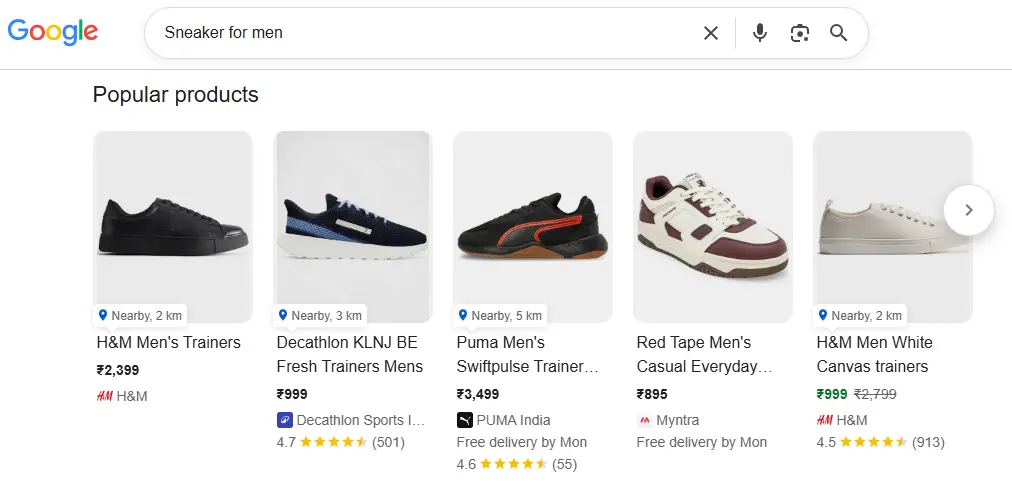
Crucial for eCommerce, Product schema tells Google a product’s name, price, availability, SKU, and additional brand information. This allows Google to display pricing and stock information directly in search listings.
<script type="application/ld+json">
{
  "@context": "https://schema.org",
  "@type": "Product",
  "name": "{{ product.title | escape }}",
  {% if product.featured_image %}
  "image": [
    "{{ product.featured_image | image_url: width: 1200 }}"
  ],
  {% endif %}
  "description": "{{ product.description | strip_html | escape }}",
  "sku": "{{ product.selected_or_first_available_variant.sku }}",
  "brand": {
    "@type": "Brand",
    "name": "{{ product.vendor | escape }}"
  },
  "offers": {
    "@type": "Offer",
    "priceCurrency": "{{ shop.currency }}",
    "price": "{{ product.selected_or_first_available_variant.price | divided_by: 100.0 }}",
    "availability": "https://schema.org/{% if product.selected_or_first_available_variant.available %}InStock{% else %}OutOfStock{% endif %}",
    "url": "{{ shop.url }}{{ product.url }}"
  }
}
</script>
| Pro Tip: If your review app doesn’t already generate Product schema, you can add AggregateRating to display star ratings in search results. |
Breadcrumb Schema
Add to: theme.liquid or breadcrumb.liquid
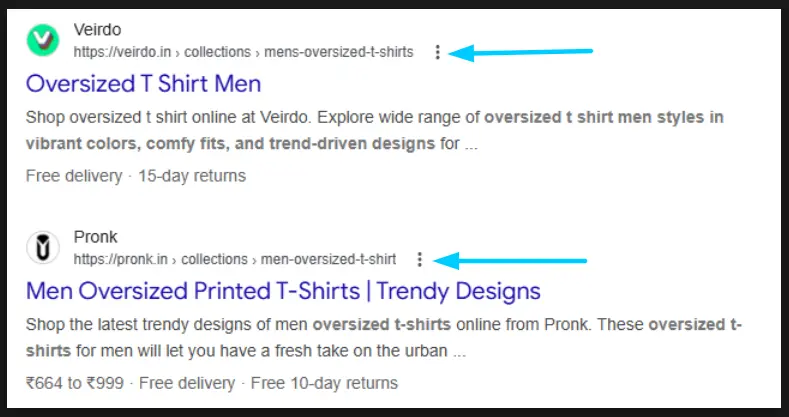
Breadcrumb schema replaces raw URLs in search results with readable, structured navigation paths. This helps users understand page context before clicking.
Example: Home → Running Shoes → Nike Air Max
<script type="application/ld+json">
{
  "@context": "https://schema.org",
  "@type": "BreadcrumbList",
  "itemListElement": [
    {
      "@type": "ListItem",
      "position": 1,
      "name": "Home",
      "item": "{{ shop.url }}"
    }
    {% if collection %}
    ,
    {
      "@type": "ListItem",
      "position": 2,
      "name": "{{ collection.title | escape }}",
      "item": "{{ shop.url }}{{ collection.url }}"
    },
    {
      "@type": "ListItem",
      "position": 3,
      "name": "{{ product.title | escape }}",
      "item": "{{ shop.url }}{{ product.url }}"
    }
    {% else %}
    ,
    {
      "@type": "ListItem",
      "position": 2,
      "name": "{{ product.title | escape }}",
      "item": "{{ shop.url }}{{ product.url }}"
    }
    {% endif %}
  ]
}
</script>
This version prevents schema errors when products are accessed without collections.
Organization / LocalBusiness Schema
Add to: theme.liquid (inside <head> or before </body>)
Local Business Schema example:

Organization Schema Example:

Organization schema tells Google who owns the store by providing business details, logos, and social profiles. It helps improve brand visibility, recognition, and credibility.
If you have a physical storefront, replace “@type”: “Organization” with “@type”: “LocalBusiness” and add the properties below inside the existing object.
<script type="application/ld+json">
{
  "@context": "https://schema.org",
  "@type": "Organization",
  "name": "{{ shop.name | escape }}",
  "url": "{{ shop.url }}",
  "logo": {
    "@type": "ImageObject",
    "url": "{{ settings.logo | image_url: width: 200 }}"
  },
  "contactPoint": {
    "@type": "ContactPoint",
    "telephone": "+1-800-000-0000",
    "contactType": "customer service"
  },
  "sameAs": [
    "https://www.facebook.com/yourpage",
    "https://www.instagram.com/yourhandle",
    "https://x.com/yourhandle"
  ]
}
</script>
For LocalBusiness, add these properties inside the existing object:
"@type": "LocalBusiness",
"address": {
  "@type": "PostalAddress",
  "streetAddress": "123 Main St",
  "addressLocality": "New York",
  "addressRegion": "NY",
  "postalCode": "10001",
  "addressCountry": "US"
},
"openingHoursSpecification": [
  {
    "@type": "OpeningHoursSpecification",
    "dayOfWeek": [
      "Monday", "Tuesday", "Wednesday", "Thursday", "Friday"
    ],
    "opens": "09:00",
    "closes": "17:00"
  }
],
"telephone": "+1-800-000-0000"
Article Schema
Add to: article.liquid

If your Shopify store includes a blog, Article schema can help Google display additional information, such as the author, publication date, and featured image.
<script type="application/ld+json">
{
  "@context": "https://schema.org",
  "@type": "Article",
  "headline": "{{ article.title | escape }}"
  {% if article.image %}
  ,"image": ["{{ article.image | image_url: width: 1200 }}"]
  {% endif %},
  "author": {
    "@type": "Person",
    "name": "{{ article.author | escape }}"
  },
  "publisher": {
    "@type": "Organization",
    "name": "{{ shop.name | escape }}",
    "logo": {
      "@type": "ImageObject",
      "url": "{{ settings.logo | image_url: width: 200 }}"
    }
  },
  "datePublished": "{{ article.published_at | date: '%Y-%m-%dT%H:%M:%S' }}",
  "dateModified": "{{ article.updated_at | date: '%Y-%m-%dT%H:%M:%S' }}",
  "description": "{{ article.excerpt_or_content | strip_html | truncate: 160 | escape }}"
}
</script>
Once you’ve added schema manually, always validate it using Google’s Rich Results Test before publishing. Even small errors in structured data can prevent rich results from appearing.
| Pro Tips for Manual Schema Implementation – Audit your theme first. Many Shopify 2.0 themes already include schema. – Use both Rich Results Test and Schema Validator to catch different errors. – Use | escape on Liquid variables to avoid broken JSON markup. – Add the organization schema only once in theme.liquid sitewide. – Avoid duplicate Product schema from review apps. – Use Liquid variables instead of hardcoded values. – Validate the schema immediately after saving changes. – Audit the existing schema with Screaming Frog or Ahrefs. – Test the schema on staging before pushing live. – Prefer JSON-LD over Microdata or RDFa for easy maintenance. |
Want these schemas and more incorporated into your eStore? Then hire Shopify experts with us and get advanced functionalities in no time.
Additional Shopify Schema Markup For Your Shopify Store
In addition to the essential schema markups mentioned above, other schema types serve different purposes. Some help showcase pricing and reviews, while others improve brand visibility. Let’s dive deeper:
Price and Availability Schema
Price and Availability schema informs search engines about your exact product price, currency, and stock status, such as In Stock or Out of Stock. This helps search listings display live product details directly in the results, attracting potential shoppers and reducing the bounce rate for users looking for unavailable products.
Review and Offer Schema
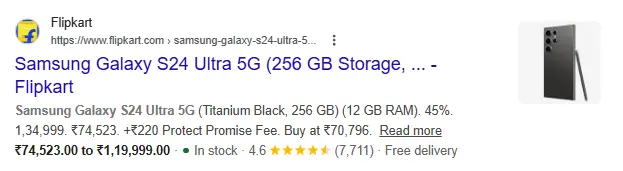
The Review schema showcases ratings and star reviews in search results, and the Offer schema adds crucial details such as purchase conditions, return information, delivery dates, and more. Together, they help your Shopify store stand out in the eCommerce clutter with strong trust signals.
"aggregateRating": {
  "@type": "AggregateRating",
  "ratingValue": "{{ product.metafields.reviews.rating }}",
  "reviewCount": "{{ product.metafields.reviews.count }}"
}
Website Schema
Website schema allows Google to learn core information about your store, including your business name, logo, and internal search functionality. Additionally, it allows you to let users search your Shopify catalog directly from Google with a sitelinks search box.
<script type="application/ld+json">
{
  "@context": "https://schema.org",
  "@type": "WebSite",
  "url": "{{ shop.url }}",
  "potentialAction": {
    "@type": "SearchAction",
    "target": "{{ shop.url }}/search?q={search_term_string}",
    "query-input": "required name=search_term_string"
  }
}
</script>
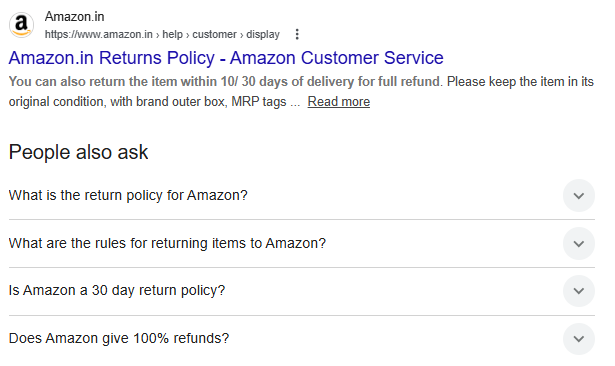
FAQ Page Schema
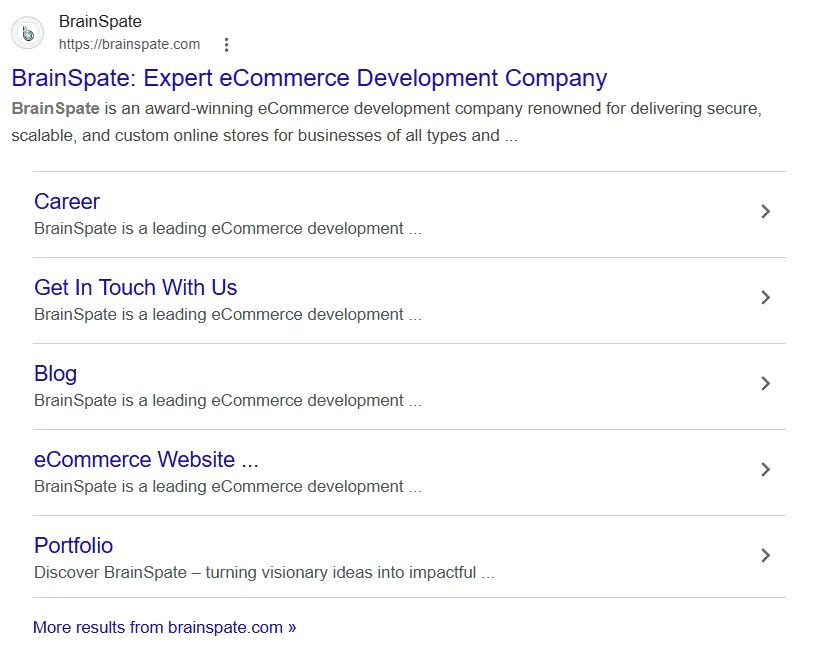
The FAQ page scheme answers shoppers’ questions before they even reach your store, making your listing more credible and helpful. Common questions and answers about products, collections, or policies are showcased in search listings.
How to add faq schema in Shopify? Here are two examples:
<script type="application/ld+json">
{
  "@context": "https://schema.org",
  "@type": "FAQPage",
  "mainEntity": [
    {
      "@type": "Question",
      "name": "What is your return policy?",
      "acceptedAnswer": {
        "@type": "Answer",
        "text": "We offer a 30-day return policy on all items."
      }
    },
    {
      "@type": "Question",
      "name": "Do you offer international shipping?",
      "acceptedAnswer": {
        "@type": "Answer",
        "text": "Yes, we ship worldwide with estimated delivery in 7–15 business days."
      }
    }
  ]
}
</script>
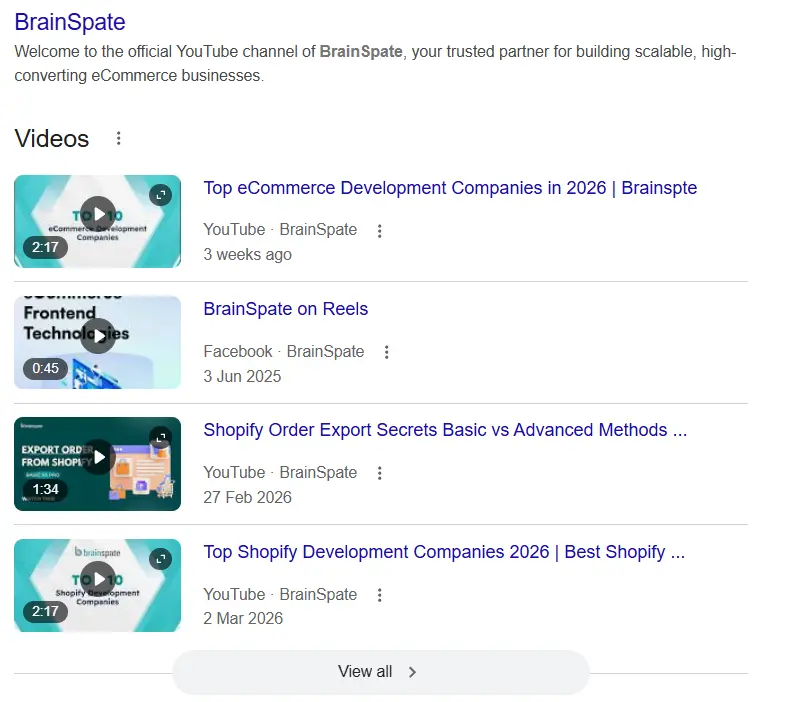
Video Schema
Let your product demos and brand videos get displayed across Google Video Search, Images, and Discover. Also, you can add details such as video descriptions, durations, upload dates, and thumbnails.
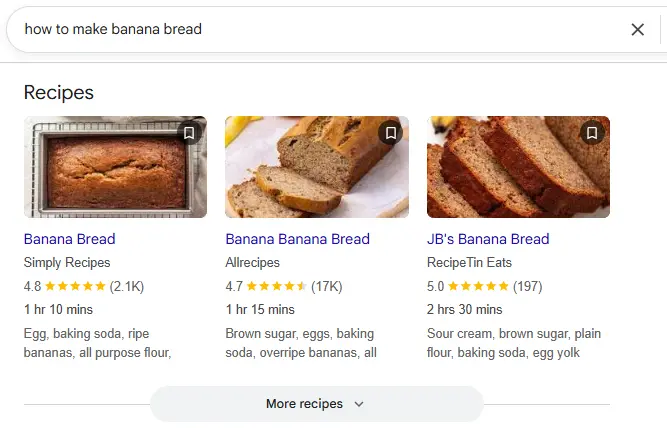
Recipe Schema
For Shopify stores focused on food products, supplements, or cooking-related items/services, Recipe schema helps structure content for recipe-rich search results. This includes ingredients, preparation details, and instructions.
Adding the right schema type is only part of the process. The next step is to ensure your structured data is working as expected, which starts with proper testing.
How to Test Your Structured Data Markup?
This is the final step in understanding how to add schema markup in Shopify. Even marginal errors can waste your efforts and block your rich results in searches. So, let’s discuss how to test and validate schema markups.
Test Your Structured Data
- Use Google Rich Results Test to check whether your schema qualifies for rich search features.
- Enter a product or page URL to preview how Google may interpret the page.
- Review validation results for warnings and errors before publishing changes.
- Check price formatting carefully; use decimals correctly (example: 299.95).
- Verify the image URLs and ensure they load correctly.
- Confirm schema properties are nested under the correct schema type.
Schema Validation Checks
- Use Schema Markup Validator to identify deeper JSON-LD and structure-related issues.
- Review JSON syntax for missing quotation marks or formatting mistakes.
- Check property names against Schema.org standards.
- Validate Liquid variables to ensure dynamic data outputs correctly.
- Verify currency values use the correct format for your market (example: USD).
- Test different product conditions such as variants, sale pricing, and out-of-stock products.
- Recheck the schema after theme updates, as theme changes can affect existing markup.
Up next, let’s uncover the most common difficulties people face when adding Shopify schema markup.
What are Some of the Common Shopify Schema Issues?
Common mistakes can keep your rich results hidden from view:
- Running multiple schema apps can create duplicate or conflicting markup.
- Missing core fields like product price, availability, or images can reduce eligibility.
- Using a JavaScript-generated schema instead of inline JSON-LD may affect how reliably search engines process data.
- Incorrect schema hierarchy, such as an Offer outside a Product, can break the structure.
- Relative image paths, instead of complete URLs, can cause image-related issues.
- Article dates should follow the ISO 8601 format for proper interpretation.
- Optional details like brand, SKU, and reviews can strengthen rich result opportunities.
- Theme or product layout updates can accidentally impact existing schema markup.
Once you identify what’s blocking visibility, the next step is learning how to diagnose and fix those issues efficiently.
Troubleshooting Shopify Schema Issues
If your Shopify schema markup is still blocked from search results, a few quick checks can help identify the issue.
- Clear your browser cache and refresh the page to load the latest code changes.
- Clear CDN or server-side cache if your store uses caching services.
- Check whether the schema script is inside a Liquid {% if %} condition that may stop it from loading on certain pages.
- Review page-specific logic to confirm the markup appears where intended.
- Run the page through the Schema Markup Validator to identify structural issues.
- Use the Rich Results Test to check whether the page qualifies for Google rich results.
- Look for JSON-LD errors such as missing commas, brackets, or quotation marks.
Once the technical issues are resolved, your schema markups should function properly and showcase your store’s rich results.
Wrap It Up
Adding schema markup to your Shopify store isn’t just a technical upgrade; it’s a smart SEO move. It helps search engines better understand your content and can improve how your products appear in search results, leading to higher click-through rates and lower bounce rates.
In this article, we covered the fundamentals of structured data, the different Shopify schema types, implementation methods, testing and validation, and common issues that can affect rich results.
Whether you use a Shopify app or edit your theme code manually, both methods can boost your store’s visibility. And the best part? Once it’s set up, most schema markup updates happen automatically in the background.
FAQs for Adding Schema Markup to Shopify
1. How do I add a local business schema to Shopify?

You can add a local business schema manually by editing your theme’s theme.liquid file. Paste the JSON-LD code with your business name, address, phone, and hours inside the tag. Alternatively, you can use apps like “SEO Manager” or “JSON-LD for SEO” that offer built-in local business schema support.
2. What are the different types of schemas in Shopify?
Here are different types of schemas in Shopify:
-Product (for product details)
-Review & Aggregate Rating (for customer reviews)
-Breadcrumb (for navigation)
-Organization & Local Business (for store info)
-Article/Blog Posting (for blog content)
3. How do I edit a schema in Shopify?
To edit schema markup, go to Online Store > Themes > Edit Code, and open the relevant Liquid files (like product.liquid or theme.liquid). Look for existing JSON-LD code blocks and adjust the values as needed. If you’re using an app, most allow you to customize schema settings from their dashboard without touching code.