How to Migrate from Magento 1 to Magento 2 Without Disruption?
Quick Summary
Magento 1 is no longer supported, which puts your store at risk of security breaches. Migrating to Magento 2 keeps your store safe, updated, and future-ready.
Magento 2 offers better speed, mobile responsiveness, and checkout experience, helping you improve customer satisfaction and increase conversions.
Magento migration involves setup, theme and extension updates, data transfer, testing, and launch, so proper planning and backups are essential.
Post-migration optimization is important, including SEO monitoring, performance tracking, and regular maintenance to keep your new store running smoothly.
Magento is a popular platform for creating eCommerce stores. While Adobe officially ended support for Magento 1 in June 2020, more than 9000 websites are still using it. Magento 1 no longer receives support or security updates, leaving these websites vulnerable to data breaches. If you own one of these websites, then it’s time to make a switch to Magento 2.
Migrating from Magento 1 to Magento 2 will help you improve your store’s load speed, mobile responsiveness, and scalability. You will be able to use modern eCommerce features and extensions offered by the latest version.
Now, the main question comes: how to migrate from Magento 1 to Magento 2? Don’t worry, we will guide you through the migration process. We will also discuss the estimated cost, useful tools, benefits of migration, and post-migration steps.
Why Migrate from Magento 1 to Magento 2?
Magento 2 excels in performance when compared to Magento 1. It offers built-in varnish caching, faster page load speeds, optimized checkout flows, and responsive themes. Additionally, it uses a modular architecture rather than Magento 1’s monolithic architecture. So, there won’t be any extension conflicts.
Magento 1 to Magento 2 migration will help you ensure these benefits:
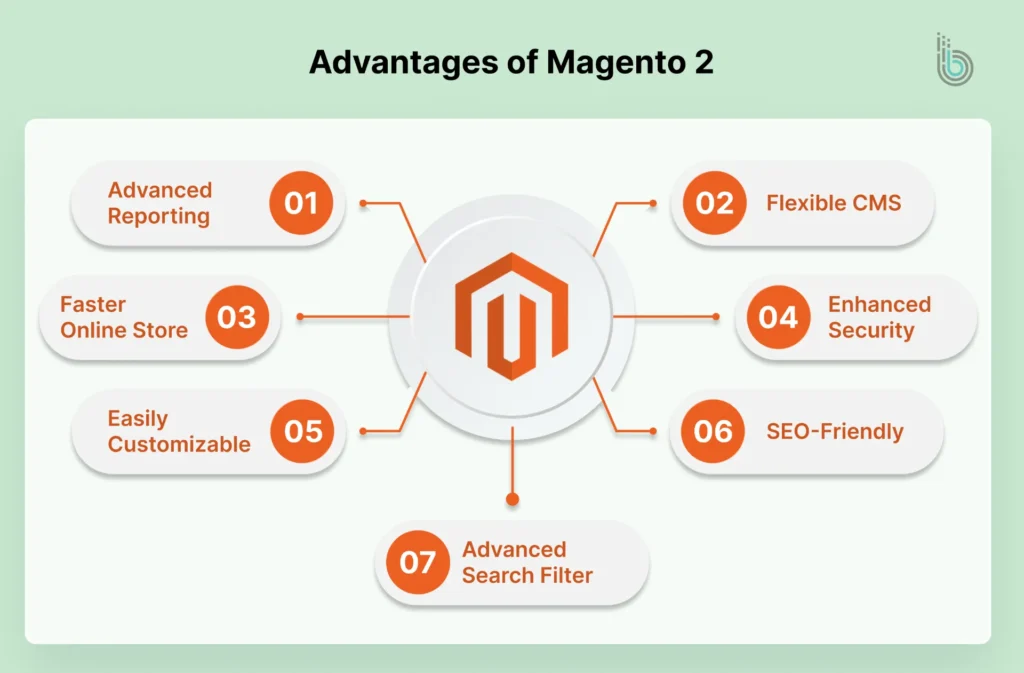
Improved Performance & Scalability: Magento 2 is much faster than its predecessor. It is actively supported by Adobe and receives frequent updates. So, you can rest assured that your online store will remain up to date with the latest features.
Security & Compliance: The first generation of Magento no longer receives security updates, creating a risk of cyberattacks and non-compliance with PCI DSS. But once you migrate your store, you won’t need to worry.
Latest Features: Magento 2 is continually evolving, and Adobe is introducing new eCommerce features to stay competitive in the market. The older version includes outdated features that may affect your store’s overall experience.
Optimized Checkout Process: The legacy Magento version uses a six-step checkout, which may not meet today’s customer expectations. Today, customers expect a simple, quick checkout process. Magento 2 offers a two-step checkout to help reduce cart abandonment.
Better Mobile Responsiveness: Magento 2 is built with mobile responsiveness in mind. It also supports PWA technology, enabling you to offer a consistent app-like experience across devices. It’s difficult to achieve this with Magento 1.
Migrating from Magento 1 to Magento 2 is no longer optional; it is a requirement for modern eCommerce brands.
Prerequisites for Magento 1 to Magento 2 Migration
To switch to Magento 2, you must prepare in advance to ensure a successful migration. Here are the top things you need to check:
Latest PHP Version: Magento 2’s latest version 2.4.8 requires a minimum PHP 8.4 version to run effectively.
Hardware Requirements: Magento 2 does not natively support production on Windows and macOS. You may need to use a Linux-based environment such as Ubuntu, CentOS, or Debian. Or else, you can work on your system with a virtualization tool like Docker, WSL, or Vagrant. Choose a robust system for production. Ensure these: 8 GB of RAM, a 4-core processor, and at least 128 GB of SSD storage.
Web Server: Apache and Nginx are officially supported by Adobe Commerce Cloud.
Database: MySQL 8.0+ and MariaDB 10.4+ are supported by Adobe.
To ensure optimal performance for your Magento store, you must consider these prerequisites. Also, don’t forget to back up your store. It will safeguard your business against data loss.
Steps to Migrate from Magento 1 to Magento 2
Both Magento 1 and 2 follow different architectures and codebases, so a switch to Magento 2 is no less than a platform shift. Before getting started, you need to study the architecture of the latest version. Also, you need to have proficiency in PHP, MySQL, and data migration tools.
If you don’t have an in-house team or technical skills, it’s best to work with a Magento migration services provider. And if you still want to handle the migration yourself, here is the process:
1. Assess Your Current Store
You should first evaluate your current store and its workflow. This will help you decide what to keep and what to change.
Here are the top things to review:
Extensions: Review all current extensions and determine which plugins you need for the new store. Remove plugins that are no longer supported.
Themes: Review if your current theme is supported in Magento 2. If not, you might need to purchase a new theme or build a custom one.
Search Engine Rankings: Magento migration might affect your website’s SEO. Review various ranking factors, including high-performing keywords, sitemaps, robots.txt files, canonical tags, and metadata.
2. Start by Setting Up Magento 2
First, download and install Magento 2 on your server. Now, create the Magento file system owner and set permissions.
Here is the installation process:
Create a new database on your host
Upload the Magento version with FTP
Extract important files to your website directory
Agree for T&C
Configure settings and customize your store
Set an admin account
3. Take a Backup of Old Store Data
Before the migration, take a full backup of your website, including files, folders, and the database.
The backup will be stored in the var/backups directory. You can restore it anytime with this command:
setup:rollback
4. Migrate the Data to the New Store
Now, we will start the migration process, taking each aspect one by one.
(A) Theme Migration:
If your current theme is not compatible with the new Magento version, you cannot migrate it. So, you might need to buy a new theme from the Magento Marketplace or third-party providers.
Magento generally offers two default themes: Luma and Blank. Luma is a standard, user-friendly theme, and Blank is almost an empty canvas. Both themes are customizable.
(B) Extension Migration
Explore the Magento Marketplace for various extensions. Find replacements for non-compliant extensions and compare options before finalizing any.
(C) Customization
If you were using a specific custom code on your older store, you can migrate that with the Code Migration Toolkit. You may need to modify your code or develop an entirely new one.
Additionally, you will need to create a config.xml file. This file will help you with multiple configuration and customization tasks. Let’s understand it with an example:
If you want to migrate data from M1 Open Source to M2 Open Source, go to:
<Magento 2 root dir>/vendor/magento/data-migration-tool/etc/opensource-to-opensource/
<Magento 1.x version> directory and rename config.xml.dist to config.xml.
Now, add the following code snippet to your config.xml file:
The code is a sample for migration. It contains the database details for Magento 1 and 2, as well as the encryption key from the older version. After entering the code into the config.xml file, save it.
7. Get Started with Data Migration
Data migration is the most important aspect of the process. Follow these steps:
The data migration tool needs to connect with both Magento 1 and 2. It should have network access.
Put a hold on all the cron jobs in your Magento 1 store. Run only what is necessary for the migration.
Migrate website settings and configurations with the migration tool.
Copy media files from Magento 1 and paste them into Magento 2. This task needs to be done manually. You have to transfer media assets from the magento1-root/media directory to magento2-root/pub/media.
Now, use the tool to copy your data in bulk and migrate it to M2. Some extensions or plugins might have a different database structure in Magento 2. You can use the mapping files to properly organize the data.
Reindex all indexers in the Magento 2 store.
8. Update the Data
Once the data migration is complete, you might need to make some changes. Start by updating the CMS pages, product catalog structures, and custom rules.
9. Continue the Migration in the Background
Large datasets will require continuous updates and migration rather than a single cut-over. So, you need to run the incremental migration in the background while focusing on your business operations.
Break down the data into different sets and migrate each set one by one. Test the functionalities at multiple intervals to ensure everything is working well.
10. Launch the Store
Once everything is migrated, it’s time to hit the launch button. Here’s what to do:
Enter maintenance mode. Do it when your store experiences the least traffic.
Stop incremental updates in your data migration tool by pressing Ctrl + C.
Run the cron jobs in your new Magento store.
Reindex the stock indexer in M2.
Cache pages in advance for your customers.
Do final testing of your new store.
Change the DNS and load balancers to use the new production environment.
Your Magento 2 store is live now.
Magento 1 to Magento 2 Migration Cost Breakdown
Every business upgrade demands some investment. Migrating your store from Magento 1 to Magento 2 will require that, too.
While determining the exact cost of the migration is difficult, you can estimate the total cost by summing the component costs. Here is a standard cost breakdown if you partner with a Magento development company:
Component
Approx. Cost
Store Setup
$0 – $500
Custom Theme Development
$1,000 – $10,000+
Data Migration
$1,000 – $5,000
Extension Replacement
$500 – $5,000
Custom Feature Migration
$1,000 – $10,000+
QA Testing & Optimization
$500 – $3,000
Agency Fees
$3,000 – $25,000+
Total Estimate
$7,000 – $50,000+
The costs given here are standard rates charged by agencies. Your final cost will vary based on the agency and the scope of work. Here are some tips to reduce the overall cost of migration:
Remove unnecessary extensions from your current store before migration
Use a built-in Magento 2 theme instead of a custom theme
Migrate only the useful data from the history
Partner with certified Magento agencies only to avoid costly errors
Useful Tools for Magento 1 to Magento 2 Data Migration
Data migration is a time-consuming process, but using tools can make it quicker and easier. There are several tools available in the market that can help you migrate data from Magento 1 to Magento 2.
One of the widely used tools is the official Magento 2 data migration tool. It can help you transfer everything from orders and products to customers and configurations.
Here are some other options:
LitExtension: It’sa popular migration tool that offers a user-friendly process to migrate data.
Cart2Cart: It creates automated data migration flows. Users can easily transfer products, categories, and customer profiles without losing any information.
Migration Pro: It will simplify data migration for orders, customers, and configurations.
UB Data Migration Pro: It can migrate complex information, including delta transfers. This will help you synchronize new data changes that were made during the migration process.
Post-Migration Tips
Now that the migration is completed, it doesn’t mean you stop putting in effort. You need to maintain your store properly and constantly upgrade it to stay aligned with the latest trends. Keep in mind the following things:
Track Performance and Fix Errors
Keep testing your store to identify performance issues. Using tools like New Relic will help you monitor slow database performance and PHP errors. Google Page Speed Insights will help you check how your store performs across different devices and its overall user experience. In addition, keep tracking error logs and server usage to uncover hidden issues.
Set Cron Jobs for Cache Clearing
Indexers and Full-Page Caching are two of the main aspects that help Magento stores maintain high-speed response. But indexes and caches can go outdated when the data changes.
Not clearing the cache will result in slow page load speed, outdated product pages, and unusual cart behavior. That’s why it’s best to set custom cron jobs to perform Magento’s indexing and cache flush commands regularly.
Monitor SEO Performance
Magento 1 to Magento 2 migration can affect your store’s SEO performance, especially if you have changed URL structures, metadata, and schema markup.
Here are some important tips to follow:
Apply 301 Redirects: If you are updating the URL structure of your Magento store, ensure you implement 301 redirects for all old URLs.
Save the Metadata: Maintain search engine trust by saving your store’s metadata. Preserve title tags, meta descriptions, canonical tags, and schema markups.
Track Organic Traffic: Use Google Search Console and Google Analytics 4 to monitor organic traffic. Set custom alerts to be notified of sudden ranking changes and crawl issues.
Migrating your eCommerce store from Magento 1 to Magento 2 is challenging, but it’s also rewarding. You will get to use the latest eCommerce features and robust security that Magento offers. Your customers will be captivated by the new store’s look and feel, leading to increased conversions and sales.
The positive outcomes of the migration outshine the challenges involved. So, start your Magento 2 migration journey today and take a step further into modern digital commerce!
FAQs
1. How long can it take to migrate from Magento 1 to Magento 2?
The migration duration will depend on your store’s data and the complexities of custom code. Usually, migration to Magento 2 takes 1 to 6 months.
2. Can I migrate my existing store design?
You can migrate your store’s current design if your chosen Magento 2 theme allows it. But it’s recommended to update the design and layout according to the latest trends.
3. Is there any chance of data loss during the migration?
If data migration is performed without precautions, there is a risk of data loss. So, it’s best to hire Magento professionals for the project.