Managing an online store requires tracking many things. You need to monitor sales, traffic, customer behavior, and the results of your marketing campaigns. The Shopify Dashboard helps you manage your online store by acting as a central hub for sales, inventory, orders, and performance.
Its easy-to-use interface simplifies daily tasks and supports data-driven decisions, which is valuable for businesses of any size. The dashboard tracks eCommerce trends, analyzes customer behavior, and streamlines workflows, making it both efficient and user-friendly. In this blog, we’ll explain how expert Shopify developers use the dashboard to manage the store effectively.
Understanding the Shopify Dashboard: Key Elements Explained
Shopify offers a user-friendly dashboard to help you manage your eCommerce store. Here’s an in-depth look at its key elements:
Home
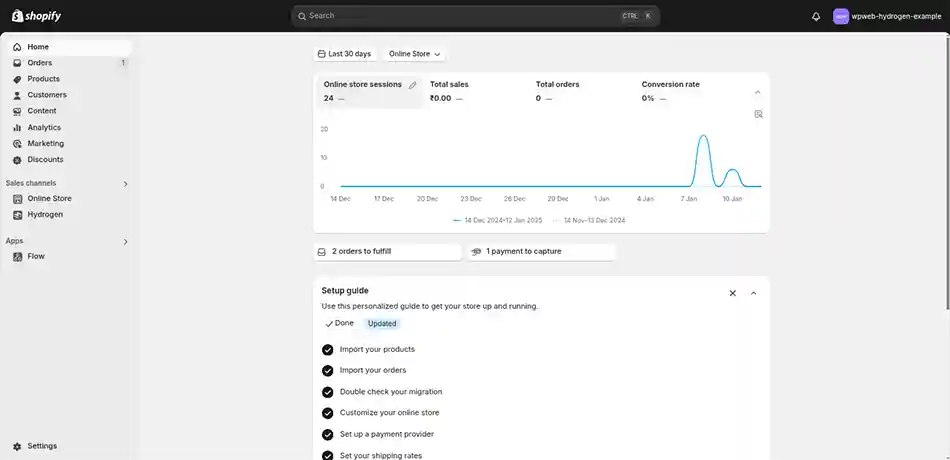
The Home section serves as your command center, providing a snapshot of your store’s recent activity. It displays performance metrics like sales figures, traffic trends, and order summaries. Shopify also offers tailored recommendations here to help boost your store’s performance using real-time data.
Orders
The Orders section lets you manage all customer orders, from processing and fulfillment to handling returns. You can track abandoned carts, enabling you to convert potential customers by retargeting them with offers or reminders.
Products
The Products tab is where you add, edit, and organize your inventory. You can manage stock levels and categorize products for better organization. You can also update product details, such as descriptions, prices, and images, to keep your store current.
Customers
This section offers a comprehensive view of your customer base. You can view customer profiles, review purchase history, and segment your audience. This helps create targeted marketing campaigns for specific groups.
Analytics
Analytics provides in-depth insights into your store’s performance. You can view detailed reports on sales, traffic sources, conversion rates, and customer behavior. These insights reveal trends that help you make smart decisions to improve your business strategy.
Marketing
In the Marketing section, you can create and manage campaigns directly from your dashboard.
Discounts
The Discounts section enables you to create and manage promotional offers. Set up discount codes, track their usage, and evaluate their impact on sales to fine-tune your marketing strategies.
Apps
Enhance your store’s functionality by integrating apps from the Shopify App Store. The Apps section helps you customize your store with tools for email marketing, inventory management, and more, tailored to fit your business needs.
Settings
The Settings section lets you configure key store preferences. Here, you can adjust payment gateways, shipping rates, tax calculations, and legal policies. This ensures your store runs smoothly and complies with all regulations, providing customers with a seamless shopping experience.
Learn these key settings to manage your Shopify store better. They help you grow your business and ensure a smooth experience for both you and your customers.
Need help with your Shopify store settings? Our Shopify Development Services can assist you. Get in touch with our expert team today!
How Do You Get Started with the Shopify Dashboard?
Getting started is as simple as logging in to your Shopify admin and exploring the sections. If you’re working with a team, it’s helpful to add another admin to your Shopify store so others can help manage orders, products, and settings without sharing login credentials. Here’s how it works.
Step 1: Sign Up or Log In:
To get started, go to shopify.com. If you’re an existing user, log in using your registered email and password.
If you don’t have an account yet, sign up for a Shopify account. You can start with a free trial to explore the platform.
If you ever need to update your credentials, here’s how to change your Shopify account password quickly and safely.
Step 2: Navigate to Your Store:
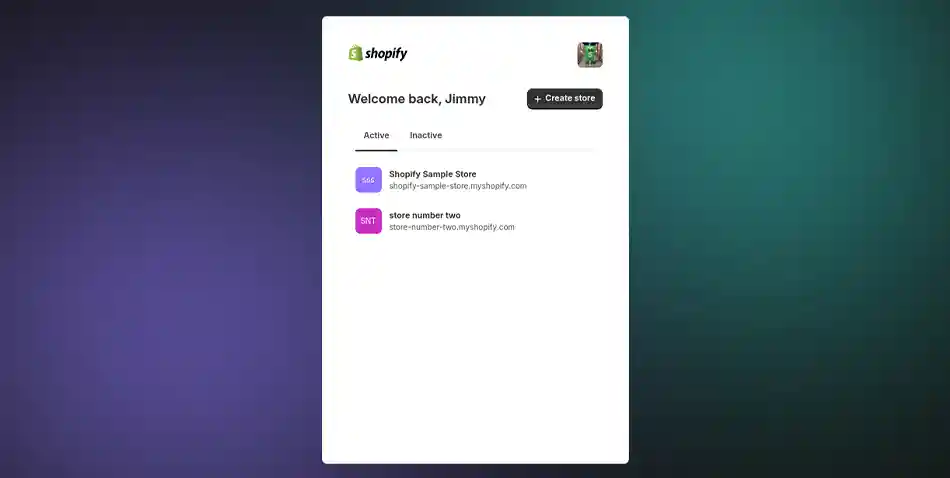
After logging in, you’ll land on the Shopify admin panel. If you manage multiple stores, you’ll see a list of your stores upon logging in.
Select the store name to access its specific dashboard. This will open the control panel for that store, where you can manage all aspects of its operations.
Step 3: Familiarize Yourself with the Dashboard Layout:
Once inside your store’s dashboard, the ‘Home’ page will be your starting point. It provides a quick snapshot of your store’s performance metrics, such as total sales, orders, and visitor data.
Check recent activity updates, where you’ll find custom recommendations to boost your store’s functionality and marketing.
The sidebar menu on the left gives you access to key sections, including:
Orders: Manage and fulfill customer orders.
Products: Add, edit, and organize your products.
Customers: View and manage customer information.
Analytics: Access detailed reports about your store’s performance.
Marketing: Create and manage marketing campaigns.
Discounts: Set up discounts and promotions.
Apps: Integrate third-party apps to extend your store’s functionality.
Settings: Configure your store’s settings, such as payment gateways, shipping options, and taxes.
Click on the section you wish to explore. This will open the section window on the right side.
How Do You Access the Shopify Dashboard on Your Mobile Device?
Shopify makes it easy to manage your store from anywhere with its mobile app. Download the Shopify app for iOS or Android devices.
Log in to your account in the app to access essential features such as tracking sales, processing orders, and managing products. The mobile app keeps you connected to your store even when you’re away from your desk.
By following these steps, you can easily access and navigate the Shopify Dashboard, ensuring smooth and efficient management of your online store.
Uses of Shopify Dashboard
The Shopify Dashboard is your all-in-one platform for efficiently managing every aspect of your online store. By consolidating key tools and data, it streamlines operations, helping you make better decisions and grow your business with ease.
Here’s a detailed breakdown of how to use the Shopify Dashboard effectively and the benefits it offers:
Manage Your Store’s Operations
The dashboard simplifies daily tasks by uniting order management, shipment fulfillment, and inventory tracking in one place.
Order Management: View and manage all incoming orders, process refunds, and update statuses with just a few clicks.
Real-Time Inventory Tracking: Monitor stock levels to avoid overselling and restock on time.
Track Performance
The Analytics section provides a detailed view of your store’s performance to guide data-driven decisions.
Customer Behavior: Monitor key metrics like page views, average order value, and conversion rates to understand shopper engagement.
Trend Identification: Use the Shopify analytics dashboard’s visual reports to spot sales trends and uncover new growth opportunities.
Optimize Marketing Efforts
The Marketing tab lets you plan and execute targeted campaigns seamlessly.
Campaign Creation: Design, launch, and track promotional activities directly within the dashboard.
Insights: Measure campaign effectiveness through metrics such as click-through rates and ROI.
Enhance Customer Relationships
Understanding your customers is key to fostering loyalty and encouraging repeat business.
Customer Insights: Access detailed profiles, purchase history, and contact information for personalized interactions.
Segmentation: Group customers by preferences, buying habits, or location to create tailored marketing strategies.
Leverage Integrations
Shopify’s robust app ecosystem boosts your dashboard’s functionality and automates repetitive tasks.
SEO Optimization: Install apps to improve search engine visibility and drive organic traffic.
Email Campaigns: Set up automated emails to stay consistently connected with your audience.
Inventory Management: Use integrations to effortlessly synchronize stock across multiple sales channels.
In essence, the Shopify Dashboard serves as a central hub for managing and analyzing your online store.
Looking to Improve Store Performance Using Dashboard Insights?
The Shopify Dashboard is your central hub for business, providing a clear view of everything. You can see real-time sales data, manage orders, and explore detailed analytics. It also offers valuable customer insights.
Use the dashboard to track store performance, manage orders and customers easily, analyze sales and marketing campaign effectiveness, and optimize products and inventory. That’s why mastering the Shopify dashboard is crucial.
FAQs on Shopify Dashboard
1. How can I resolve errors or technical issues on the Shopify Dashboard?
If you encounter errors, check Shopify’s help documentation or community forums for solutions. You can also contact Shopify support for assistance. Ensuring that your apps and system are up to date can help prevent technical issues.
2. What are the security features of the Shopify Dashboard?
Shopify focuses on security. It provides SSL encryption, regular updates, and two-factor authentication (2FA). These measures help keep your data and transactions safe. These features ensure your store and customer data remain safe.
3. How does the Shopify Dashboard help with customer management?
The Customers section shows detailed profiles. It includes purchase history, contact information, and preferences. This data helps you divide customers, make personalized marketing campaigns, and strengthen relationships.
4. Can I customize the Shopify Dashboard to suit my business needs?
Yes, the Shopify Dashboard is highly customizable. You can install apps from the Shopify App Store. These apps add features, connect third-party tools, and let you adjust settings for your business needs.