As a Shopify store owner, keeping your customers informed about their orders is super important. You want to give them an easy way to track their purchases. Because when shoppers cannot check their order status, they get anxious. Anxious customers mean more “Where is my order?” messages flooding your inbox.
An order tracking page solves this perfectly. It shows customers exactly where their package is, making your store feel more trustworthy and professional. In this article, we will share how our team hires Shopify developers. They have plenty of experience adding this essential feature to stores like yours. Ready to make your customers (and your life) easier? Let’s begin!
What is Shopify Order Tracking Page?
A Shopify order tracking page is a dedicated page on your store that customers can visit to check the status of their orders. The page provides details like where their package is and when it will arrive, as well as any updates on the delivery process.
Merchants can provide order tracking using Shopify’s built-in features. Shopify automatically sends tracking emails to customers when their orders ship, and you can also link to a tracking page. Creating a dedicated order tracking page on your website is smart. It lets customers easily track their orders with their Shopify order tracking number. No hassle involved!
This tiny upgrade does two big things:
It keeps shoppers happy (because nobody likes waiting in the dark).
It saves you time (fewer “Where’s my order?” emails to answer).
It’s one of those small changes that makes buying from your store feel smooth and professional.
Understanding the Importance of Order Tracking
Order tracking does more than answer questions. It solves real business problems. According to a Gartner report, 80% of customers feel satisfied when presented with a good CX-driven WISMO page.
Better Customer Experience
Customers appreciate transparency. When they can see their shipment status, their anxiety calms down. They know exactly when to expect their package. This simple visibility improves how they feel about your brand. They are more likely to shop with you again because you kept them informed.
A good tracking experience feels like personal attention.
Reduces Purchase Inquiries
Support tickets about shipment status cost time and money. A support agent answering the same question 50 times a day could be doing something more valuable. With a tracking page, customers get those answers themselves. Your customer support can resolve real issues such as returns, refunds, and more.
The entire checkout experience matters. When buying feels smooth and transparent, customers are more likely to buy again. A tracking page is part of that smooth experience. It is one less thing for them to worry about.
Develop Trust and Loyalty
Trust is the base of repeat business. When customers know their orders are being tracked and updated, they trust you more. Moreover, they feel less at risk. This trust turns first-time buyers into repeat purchasers.
A transparent tracking experience also says that, as a brand, you are an organized, professional business. Customers remember that.
Manage Customer Expectations
Delivery times vary by location, carrier, and season. A tracking page sets clear expectations. Customers can see the clear estimated delivery window. If a delay happens, customers already have realistic expectations. They are less likely to be upset.
How to Create a Shopify Order Tracking Page?
Merchants can provide order tracking using Shopify’s built-in features. Shopify automatically sends tracking emails to customers when their orders ship, and you can also link to a tracking page.
A dedicated order tracking page on your website is a smart choice. It lets customers track their orders directly, so they don’t need to reach out to support. If they need more help, they can always check the Shopify customer service number for assistance.
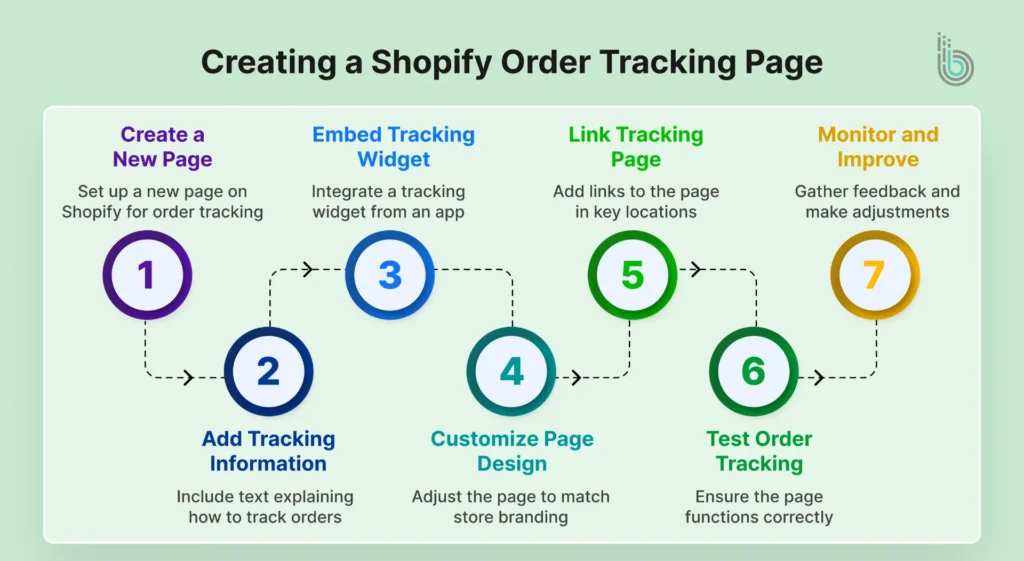
Step 1: Create a new page on Shopify
In your Shopify admin, go to Online Store > Pages.
Click on Add Page.
Title the page something like “Track Your Order” or “Order Tracking.”
Step 2: Add tracking information to the page
In the page editor, you can add text explaining to customers how to track their orders. For example, “Enter your order number below to track your shipment.”
You can also add a short description of the order-tracking process for your customers, such as the steps they should follow to track their orders.
Step 3: Embed the tracking widget or link
You can use Shopify’s built-in Order Lookup feature, available to Plus users. For other users, there are apps you can integrate to provide tracking features directly on the page.
To Embed a Tracking Widget from an App:
First, install a tracking app from the Shopify App Store.
After installation, go to the app’s settings to get the embed code or widget URL.
Return to the page editor for the “Track Your Order” page you created.
Paste the tracking widget code into the HTML section of the page.
Save the changes.
Step 4: Customize the order tracking page design
Once the tracking page is ready, you can customize it to match the look of your Shopify store.
Add Branding: Include your store logo and adjust the colour scheme to match your branding so the tracking page feels like a part of your site.
Make it User-Friendly: Keep the design simple and easy to navigate. Add instructions, an FAQ section, or customer service contact details. This helps users who struggle to track their orders.
Add a Call-to-Action (CTA): Make sure your customers can easily find the order tracking section. Use a clear CTA, such as “Track Your Order Now,” to guide customers to the right page.
Step 5: Link the order tracking page in key locations
You need to prominently link to the tracking page on your website so your customers can easily access it.
Add a Link in the Navigation Menu
Go to Online Store > Navigation.
Select the main menu (or footer menu) where you want the link to appear.
Click Add Menu Item and add the link to your order tracking page.
Include a Link in Order Confirmation Emails
Shopify sends order confirmation emails automatically. You can customize these emails to add a link to your order tracking page.
To do this, go to Settings > Notifications in Shopify and edit the Shipping Confirmation or Order Confirmation template.
Include a message such as “Track your order here” with the URL of your order tracking page.
Promote the Page on the Thank You Page
After a customer completes a purchase, redirect them to the “Thank You” page and include a link to track their order.
This provides immediate access and encourages customers to check the status of their orders.
Step 6: Test the order tracking page
Before making the page live for your customers, test everything to ensure it works smoothly. You must check:
Tracking Widget: Make sure the tracking widget shows the right info. It should display the current shipment status and the expected delivery date.
Responsive Design: Ensure the page is mobile-friendly, as many users will access it on their phones.
Links and Buttons: Double-check that all links (e.g., the “Track Your Order” button) are working and lead to the correct page.
Step 7: Monitoring and improvements
After the order tracking page goes live, gather customer feedback and see whether they are using it. If there are any issues or customer questions, consider making adjustments. You can find more ways to boost tracking. For example, add a chatbot for order questions.
Having an optimized order tracking page doesn’t just help your customers; it also makes things easier for you. If you face any trouble with the process, our Shopify development services will make things easier for you.
Shopify Order Tracking: Default Features, Challenges, and Solutions
Shopify comes with all the basic order tracking features. When customers want to track their orders, they have to log in to their Shopify account. The tracking number is available in the fulfilled section of the orders page in Shopify Admin.
What are the Built-in Features in Shopify Order Tracking?
Every order automatically gets an order status page.
When you add a tracking number to an order in your admin, Shopify shares that number with customers in email notifications.
Customers can track their orders on Shopify’s order status page if they have the direct link. This page displays the order confirmation status, fulfillment status, and carrier tracking information.
You can update the order status manually in your admin.
When you mark an order as fulfilled and add a tracking number, Shopify automatically sends the notification.
These features work. They are simple and require no additional apps.
What are the Common Challenges?
The default setup has limitations. Most common ones are:
Customers should find the order status page link. If they lose that email, they cannot easily track it unless they remember the URL or contact you.
If you have multiple carriers (USPS, UPS, FedEx, DHL), the default setup handles it, but the experience is not particularly smooth. Customers might see a tracking number but not which carrier it belongs to.
Manual updates take time, and errors happen. If you are a growing store with hundreds of orders a day, manually adding tracking numbers can get exhausting.
The tracking page is accessible via a generic URL. It is not customized to your brand. Customers see a Shopify template, not your unique design.
Internationally, tracking can break down. Different carriers have different formats, so the default system struggles here.
But apart from these, the biggest challenge for any Shopify merchant is the lack of real-time tracking options. Customers want to know when their parcel will arrive. If they cannot track it in real-time, they ask more questions about their order. Your customer service team will handle more inquiries. If they do not answer them, customer frustration will increase.
What are the Solutions?
For the first issue, create your own branded tracking page as described earlier. This puts tracking front and center on your site.
For carrier management, use an app that auto-pulls tracking data from all major carriers. Apps like Shippo and Oberlo Shipping connect directly to USPS, UPS, FedEx, and other carriers. Tracking updates happen automatically.
For manual updates, automate the process. Many shipping apps integrate with the Shopify order system. When a carrier scans your shipment, Shopify automatically gets updated.
For international orders, choose an app that supports worldwide carriers. Some apps like TrackMaster work globally.
For branding, design your tracking page within Shopify using your own theme and colors. This creates a cohesive experience.
Some apps charge per order tracked, and others charge monthly. Evaluate the cost against the savings from reduced support tickets.
Wrap It Up
When you add an order tracking page to your Shopify store, it improves your customers’ shopping experience. It keeps them informed about the status of their orders, which increases transparency and trust. An order tracking page helps customers easily track their purchases. This reduces unnecessary inquiries and eases the workload for your customer service team. It also ensures a more consistent brand experience.
It also improves customer retention and loyalty. This feature is key for today’s eCommerce businesses. It helps improve operations and keeps customers satisfied.
If you need help with your Shopify store, our expert developers are here for you. Contact us today!
FAQs on Shopify Track Order
1. How do I add an order tracking page to my Shopify store?
You can create a new page in Shopify and embed a tracking widget from an app like AfterShip or Trackr. Then, add the page to your store’s navigation menu so customers can easily access it.
2. Can customers track orders without logging into their Shopify account?
No, Shopify’s default setup requires customers to log into their accounts to track orders. You can help customers track their orders more easily. Just add a tracking page where they can use their order numbers.
3. Will an order tracking page reduce customer service inquiries?
Yes, giving customers a simple way to track their orders will cut down on order status questions. This saves your customer service team time.
4. How can I improve the order tracking experience for my customers?
Use an app that auto-pulls tracking updates from carriers. Send proactive notifications when status changes. Design a mobile-friendly page and make the search simple. Explain status terms clearly, test frequently, and improve based on feedback.
5. Do I need to pay for a third-party tracking app?
Built-in tracking is free in Shopify, but limited. Most third-party apps charge $5-30 monthly, depending on features. Some charge per order as well. Calculate if reduced support tickets justify the cost.