
Quick Summary
- Understand why growing businesses switch from Shopify to WooCommerce for greater flexibility, lower costs, and long-term scalability.
- Explore key platform differences, including customization freedom, SEO capabilities, payment flexibility, and plugin ecosystem advantages.
- Learn essential pre-migration steps such as backing up store data, auditing apps, setting up hosting, and preparing redirects.
- Follow a structured 11-step migration process covering data transfer, store setup, testing, post-launch checks, and performance optimization to ensure a seamless transition.
In the dynamic, ever-evolving eCommerce industry, running an online store demands constant assessment, adjustment, and customization. With an easy learning curve, Shopify is a reliable eCommerce platform to start your business, but that doesn’t mean it’ll work for the next phase of your business.
Thousands of U.S. based online store owners are adopting Shopify to WooCommerce migration every year. As your business grows, Shopify’s customization limitations and increasing transaction fees can feel like hitting a brick wall, impeding growth and affecting your margins.
Here’s a real representation of the eCommerce platform migration landscape:
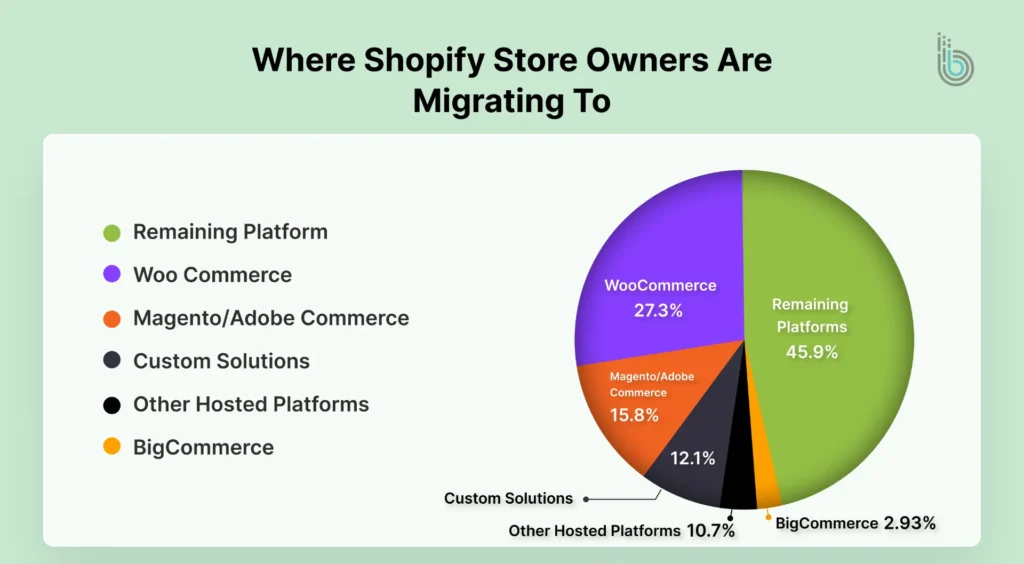
This emphasizes WooCommerce’s impact on the eCommerce industry.
With WordPress as its backbone, WooCommerce gives business owners full ownership of their online store, offering complete control over costs, integrations, code, and more. From custom-built storefronts to manual SEO control and scalability without cost increase, the WooCommerce model makes all of this possible for growing businesses.
The switch from Shopify to WooCommerce is more complex than you might think, involving multiple facets such as customer data, order history, product catalog, SEO authority, and more. Without proper guidance, this transition can lead to reduced SERP rankings, broken links, and confused customers. With expert guidance, this one-time effort and investment can future-proof your business.
Before we begin the guide, let’s first understand the basics of these two eCommerce platforms.
What Is Shopify?
Shopify requires businesses to follow its proprietary rules and standards, offering a closed-source eCommerce platform. Total revenue earned on Shopify stores exceeded $11 billion in 2025.
With paid-only plans, you can get security and hosting features, along with the primary tools, all in a single package.
New business owners are drawn to this platform because it makes launching and selling feel easy and quick. But the scalability problem becomes apparent as your store grows, with customizations and extensions hidden behind hefty paywalls, a bulky app-integration structure, and platform-specific limitations.
What Is WooCommerce?
WooCommerce follows an entirely different approach, offering an open-source eCommerce plugin for WordPress. Powering over 4.4 million online stores, it is the most prevalent eCommerce platform worldwide.
The popularity behind this platform is due to the “free will” it offers to its business owners. With a vast plugin ecosystem, WooCommerce manages your store, from product listings to shipping and everything in between. The online store management experience on this open-source ecosystem gives you the freedom to shape your store however you want.
And this is the main difference between Shopify and WooCommerce. Customizing and fine-tuning the checkout, SEO setup, and third-party tool integrations can all be implemented without hurdles.
Limitless flexibility is the primary reason why the Shopify to WooCommerce migration makes sense for U.S. store owners.
? Here’s a direct comparison of Shopify and WooCommerce market share:
| Platform | Desktop: % Ecommerce Sites | Desktop: % All Sites | Mobile: % Ecommerce Sites | Mobile: % All Sites |
|---|---|---|---|---|
| WooCommerce | 35.4% | 7.1% | 44.4% | 7.0% |
| Shopify | 21.5% | 4.3% | 25.3% | 4.0% |
But the decision can’t be made by popularity alone; we need to understand how each platform supports a business as it grows. Let’s look at the real reasons why business owners would want to rethink their setup.
Why Switch From Shopify to WooCommerce?
Shopify to WooCommerce migration is not an impulse decision; it develops over time as you realize your eCommerce platform is limiting your business growth. Here’s what actually inspires this shift:
- Complete Control: WooCommerce’s open-source foundation lets you modify the code, adjust store functionalities, and customize to fit your goals.
- SEO Flexibility: Unlike Shopify’s basic SEO tools, WooCommerce allows you to manage your organic growth with end-to-end technical modifications, including site structure, metadata, schema, and more.
- Extended Payment Gateway Accessibility: Beyond major payment processors, WooCommerce supports a broader range of payment integrations, including region-specific and niche options. Also, instant deposits and bank transfers take minutes, whereas Shopify takes at least 2 days.
- No Additional Transaction Fees: If you’re not using the native payment system, Shopify charges extra. This isn’t an issue with WooCommerce, keeping your profit margins intact.
- Unmatched Plugin and Theme Ecosystem: With over 54,000 plugins and 300+ extensions, you pay for what you actually integrate and customize anything you need, from subscriptions and membership access to product groupings and checkout experiences.
- Scalable Pricing Structure: WooCommerce is free, so you only invest in hosting, your domain, and any extras you choose. You pay solely for what your store truly needs.
These differences translate to real business advantage, allowing you to customize your store freely, scale comfortably, and keep your margins protected.
Now that we’ve reviewed the reasons to migrate Shopify to WooCommerce, let’s discuss the essential preparations before the transition.
What Should You Prepare Before Migrating from Shopify to WooCommerce?
Preparation is key to a seamless eCommerce platform transition. Basic groundwork helps provide peace of mind once you reach the other side of migration. Here’s a list to consider before starting your Shopify to WooCommerce migration journey:
- Set Up WordPress/WooCommerce Foundation: The first step is to get reliable eCommerce hosting. Then install WordPress and activate WooCommerce. This is the destination where you’ll transfer your data.
- Back Up Shopify Data: Export all your data, including products, order history, and customer records, as CSV files. This ensures you safeguard all essential information in the event of any issues during migration.
- Keep Your Shopify Store Live: WooCommerce imports the product images from your Shopify-hosted URLs. Taking your Shopify store offline too soon can result in broken image links and incomplete product listings.
- Audit Your Apps and Features: Identify and list the Shopify apps your store depends on, including page builders, marketing tools, subscription add-ons, etc., and confirm which WooCommerce extensions you might need to replace them with.
- URL Redirect Mapping: Without new 301 redirects, your online store may go down in SERP rankings, wasting months of effort. New URLs must be placed before the migration, not after.
- SSL Certificate Activation: To protect customer data and improve your store’s security and SEO, you must maintain an active SSL certificate on your WooCommerce domain.
With the essentials covered, let’s dive into the actual Shopify to WooCommerce migration process.
How to Migrate & Import Shopify to WooCommerce
There are two methods to handle this transition: Hire a WooCommerce developer or team or do it manually. Which option to choose depends on your store’s scale and complexity, your technical expertise, and how much time you have. We’ll guide you through both methods and discuss the best ways to switch from Shopify to WooCommerce.
Method 1: Hire a WooCommerce Migration Expert or Team
Shopify is designed in a way that makes it difficult to leave. Transferring customer records, order history, and product listings while keeping your SEO and functionality protected takes more expertise and precision than most business owners expect.
Here’s what end-to-end eCommerce migration services offer:
- Complete, Error-Free Data Transfer: Your Shopify store data is imported neatly, including products, categories, customer records, order history, and more. No missing data, no gaps, no broken links, and no customer confusion post-migration.
- Rebuilding Online Store Themes: Shopify themes cannot be copied onto your WooCommerce store. Your dedicated developer recreates and optimizes your entire store design.
- App-To-Plugin Alignment: As mentioned in the section above, WooCommerce plugins must be mapped to the existing Shopify apps to ensure optimal functionality. Your expert might need to add custom solutions where off-the-shelf plugins don’t fit, as well as third-party API integrations with ERPs, payment gateways, and CRMs.
- Fine-Tuning Performance and Security: As a self-hosted platform, WooCommerce places responsibility for speed and security on you. Your migration team configures hosting, sets up caching and CDM, and ensures PCI-DSS compliance from the outset.
- Pre-Launch Testing and Debugging: Before potential customers visit the store, every aspect is thoroughly examined. A flawless checkout flow, payment process, traffic test, and comprehensive debug pass are applied to help your store run better post-migration.
This article explains how to hire WooCommerce developers for your project, so you can focus on business growth instead of migration concerns.
Method 2: Manual Shopify to WooCommerce Migration Process
The manual approach may get difficult if your business is complex and your team lacks technical proficiency. But it can be managed if you follow this step-by-step process
Step 1: Choose the Right Hosting
Your entire migration architecture is built on this foundation. You should be choosing:
- WooCommerce-optimized hosting with caching and scalability features
- High-performance cloud, VPS, or dedicated server configurations
- Malware scanning, PCI compliance, and built-in firewalls
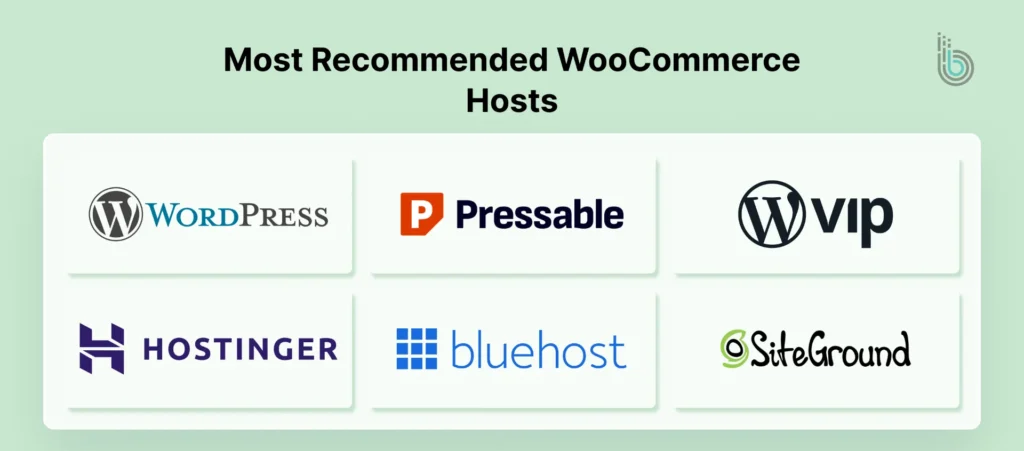
Learn about the 9 Best WordPress Hosts for WooCommerce Stores here. This step is crucial because hosting issues translate to performance bottlenecks, which are really difficult to fix after migration.
Step 2: Install WordPress
For smaller stores, most hosts provide a one-click WordPress installation process. But for enterprise-level, high-traffic operations, a manual setup is more preferable. This gives you complete control over database configuration, SSL and HTTPS, and automatic backups before you even start the Shopify to WooCommerce migration process.
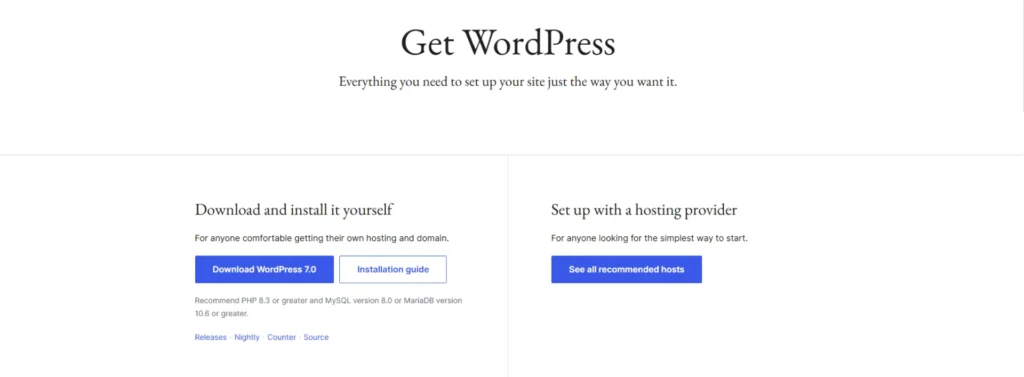
Step 3: Install and Configure WooCommerce
After WordPress goes live, install WooCommerce via the admin panel.
? Navigate to Plugins → Add New, search for WooCommerce → install → activate.
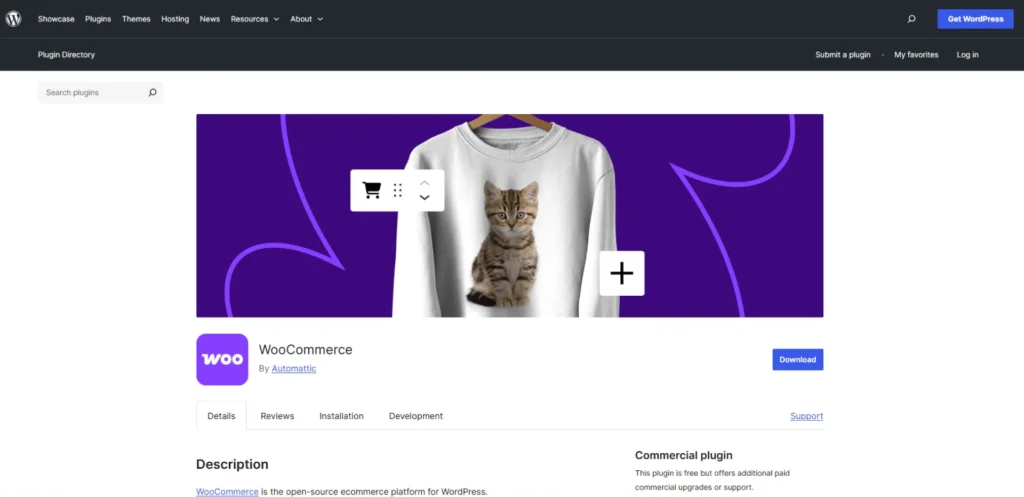
Follow the setup wizard and configure the following:
- Currency and payment gateways like Stripe, PayPal, or enterprise options like Adyen
- Tax rates and shipping zones for global sales
- Checkout settings and email notifications
- User role permissions and permalinks
Optimize every aspect of your store setting to keep it functioning under optimal conditions.
Step 4: Enterprise-Level Performance Optimization
The basic WooCommerce install works perfectly for small stores, but you must go beyond for higher volumes:
- Database optimization for faster queries, with MariaDB or MySQL indexing
- Caching via Redis or Varnish, and a CDN like Cloudflare or AWS CloudFront
- Scalability testing to confirm your setup can handle high traffic volumes
Step 5: Activate Shopify Maintenance Mode
Keeping both stores active during the Shopify WooCommerce migration can lead to issues such as inventory mismatches, misplaced orders, and potential content duplication, which can adversely affect your SERP rankings.
? Note: Shopify does not offer a built-in maintenance mode, but you can achieve a similar result by password-protecting your Shopify store.
? Go to Online Store → Preferences → Enable Password Protection → Set a Password
Lastly, remember to add a message letting your customers know that your store is under maintenance.
Step 6: Export Your Shopify Data
Shopify data is segmented across different sections of the admin panel. Here’s everything that you should extract in CSV format:
- Products: Titles, descriptions, images, prices, SKUs, inventory levels, and categories. It can get messy while exporting complex product variations, so review the file thoroughly.
- Customers: Names, emails, phone numbers, shipping addresses, and order history. For security purposes, Shopify does not expert password. Plan account reset emails after migration.
- Orders: Order IDs, product details, billing and shipping addresses, payment status, and fulfillment records. Crucial for reporting and customer service.
- Ancillary Data: Discount codes, gift card details, and everything else your store’s daily operations depend on.
? Export process: Navigate to the Required Shopify Admin Section → Export Option → Select CSV → Download
Step 7: Import Your Shopify Data Into WooCommerce
To overcome the limitations of WooCommerce’s native import tools and achieve a seamless eCommerce platform transition, use dedicated migration plugins like Cart2Cart and WP All Import. These plugins must be used with the WooCommerce import add-on or LitExtension for a comprehensive migration of your entire store.
And for manual products-only migration:
? Go to Products → Import in your WooCommerce admin → Upload your Shopify CSV file.
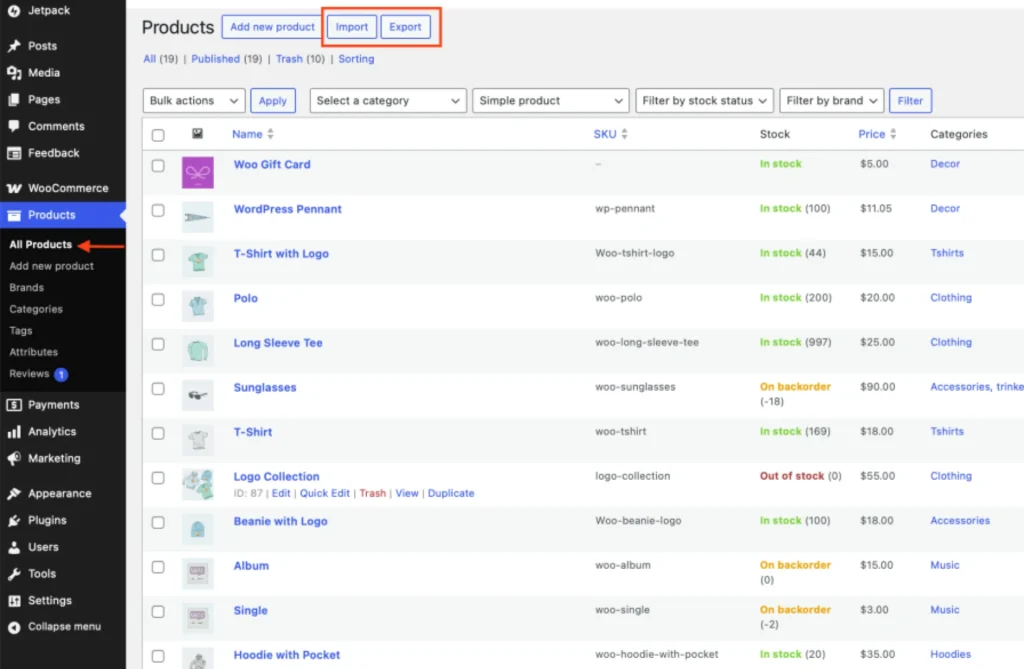
Align Shopify fields with WooCommerce fields carefully, as their CSV structures differ. Run the import and review all product images, variants, and prices before moving on.
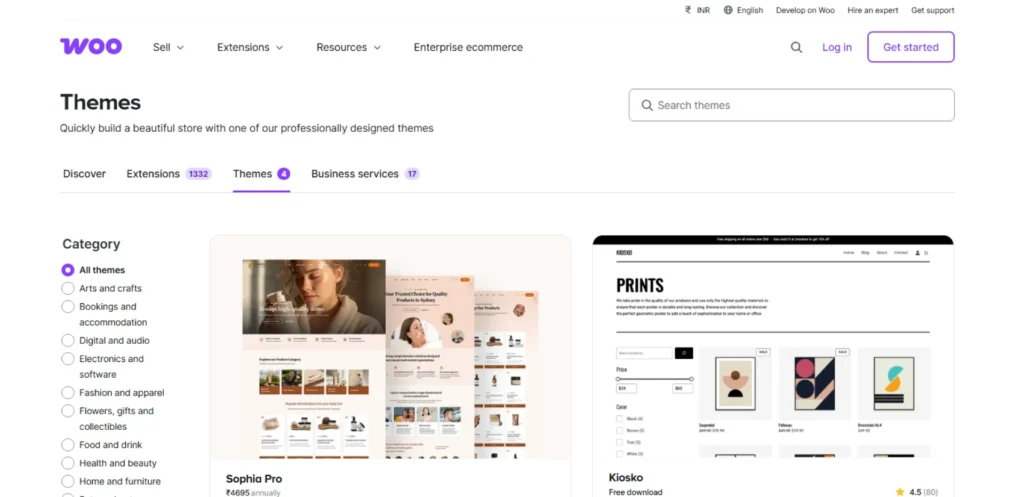
Step 8: Select and Set Up Your New WooCommerce Store Theme
When it comes to your store design, you need to start from scratch as Shopify themes can’t be transferred. For your store, a preferable theme will feature:
- Fast and lightweight structure
- Fully customizable flexibility without rigid layout restrictions
- Compatibility with page builders like Elementor, Gutenberg, or Bricks
- eCommerce performance functionality
Choose a theme that perfectly fits your brand aesthetics and then scale ahead.
Step 9: Test Every Facet Before Making It Live
Never skip this step. Testing is the key difference between a smooth, successful store launch and one that costs you sales and rework on the first day. Let’s cover each aspect:
- Product Information: Ensure precise titles, descriptions, images, variants, SKUs, prices, stock levels, tags, and categories.
- Customer Accounts: Allow returning customers to log in and see their order history without disruptions.
- Checkout Flow: Test discount codes, multiple shipping zones, and different payment methods logged in as both a guest and a logged-in member.
- Payment Gateways: Test order placement and refund processes, as well as customer engagement journeys through confirmation emails and messages.
- Performance: Run Google PageSpeed Insights or GTmetrix; use WP-Optimize to clean up leftover Shopify metadata.
- Security: Safeguard your online store with verified SSL activation, reCAPTCHA, and plugins like Wordfence or Sucuri.
- Cross-Device Usability: Test the store on multiple devices, including mobile, tablet, and desktop, to confirm responsiveness on all screen sizes.
- Search Engine Optimization: Review meta titles, descriptions, and structured data migrations, and submit your updated sitemap to Google Search Console.
- Navigation and User Journey: Use your store as a customer, clicking through the homepage, categories, product pages, and beyond to identify any inefficiencies.
Step 10: Set Up 301 Redirects
You need new WooCommerce URLs as your previous Shopify URLs won’t align. Without redirects, any user who lands on a saved or bookmarked link will encounter a 404 error, negatively impacting customer experience and search rankings.
Create 301 redirects with a plugin, .htaccess, or Nginx rules. Then manually test the old URLs to confirm the precise traffic flow to your new URLs.
Step 11: Direct Your Domain To WooCommerce
Steps may differ slightly by registrar, but the process remains consistent:
- Log in to your domain registrar. If the domain was registered through Shopify, unlock it and disable Shopify’s domain forwarding.
- Navigate to the DNS settings and update your A record to point to your WooCommerce server’s IP address (provided by your host).
- Update the CNAME (www) record to your new hosting provider if needed.
- Configure SSL in your hosting control panel.
DNS changes typically take effect within 24 – 48 hours. Use a DNS checker tool to confirm everything resolves correctly before moving on.
Achieving a successful manual Shopify to WooCommerce migration is a commendable milestone. Now we’ll provide further guidance on protecting your rankings, retaining your customers, and ensuring your new store performs optimally. Let’s discuss what happens next.
What to Do After Shopify to WooCommerce Migration?
Going live doesn’t finish the transition; it starts the critical 48 hour window. Here’s what needs to be verified immediately after launch:
Run through this checklist within the first 48 hours:
- All products display correctly: Images, prices, and variants intact
- Customer accounts are accessible, and the order history shows up precisely
- 301 redirects are functioning: Manually test 10 – 15 of your most important URLs
- Sitemap submitted to Google Search Console and indexed
- Order confirmation and abandoned cart emails are live and sending correctly
- Payment gateways tested with an actual live transaction
- Mobile checkout works end-to-end without friction
- Analytics and conversion tracking events are firing properly
- Internal links and blog post URLs are updated to reflect the new structure
- 404 error monitoring is active in Search Console
Most business owners commonly overlook this: Closely monitor the search console weekly for the first month. Redirects that work well the first day might break later, and fixing these errors early can make a huge difference to your rankings.
Once your store is stable and traffic is recovering, the focus shifts to fine-tuning how your data got migrated, specifically your products. This is where the right import tool comes in play. Next, we’ll discuss the advantages of using WP All Import for product import.
What Are the Advantages of Using WP All Import
When WooCommerce’s built-in import tools fall short, WP All Import fills the gap. It’s one of the most viable options available for product-specific migrate & import Shopify to WooCommerce.
Here’s what makes it useful:
- Selective Filtering: Import only the products you actually need, rather than adding everything from your file.
- Scheduled Imports: Automate repeating product syncs without manual interventions, saving time and effort.
- Real-Time Data Modification: Adjust incoming data during import using PHP, whether that’s combining fields, splitting values, or adding fixed attributes.
- Multi-Format Support: Compatible with CSV, XML, Excel, and Google Sheets, so your Shopify CSV export isn’t the only option.
- Handles End-to-End Product Types: Effortlessly manage simple products, variable products, and everything in between.
- Not Just Products: Beyond your catalog, this plugin also supports importing orders and customer data.
- Update and Delete Controls: Easily refresh or clear out products as you import, so your catalog always stays organized and up to date.
That last point matters more than it seems. Shopify and WooCommerce structure product data differently, and WP All Import gives you the control to bridge that gap cleanly rather than forcing a messy transfer.
With the right tools and approach in place, a Shopify to WooCommerce migration goes from problematic to easily manageable. Let’s wrap up with what this all means for your store.
Conclusion
A Shopify to WooCommerce migration is one of the most involved and personal decisions a store owner can make, and as this guide indicates, it’s not an easy undertaking. There are technical steps at every stage, and the margin for error is serious. An incorrect redirect, a missed data transfer, or a misconfigured payment gateway can wreak havoc on customer experiences, SERP rankings, and your budget.
That said, for store owners who feel stuck with Shopify’s limitations, this move is absolutely worth it. With full ownership, flexible customization, no transaction fees eating into margins, and a plugin ecosystem that scales with you, WooCommerce offers unmatched benefits.
If you or your existing team is technically proficient, this guide provides an all-inclusive step-by-step process for a seamless eCommerce platform transition. If not, you can always hire a WooCommerce developer or a team to execute this migration.
Either way, the goal is the same: creating a more capable, more powerful online store built around your business rather than a platform’s limitations.
FAQs
1. How can the WP All Import plugin help grow my WooCommerce store after migrating from Shopify?

Moving to WooCommerce already puts you in a better position: lower fees, full customization, and stronger SEO control. The migration plugin, WP All Import, makes sure the process is seamless and comprehensive. It transfers your entire store, products, orders, customers, coupons, blogs, and pages, without gaps or data leaks.
2. Can I migrate only specific data instead of transferring everything?
Yes. You can use powerful filtering options to import only specific products, orders, customers, or coupons. You can filter the data by title, type, vendor, date, ID, financial status, and more, so you’re not forced into a standard transfer process.
3. Will my product details and categories remain intact after migration?
Yes. Data migration, while following the steps correctly, preserves all product details, including titles, descriptions, prices, images, categories, variants, and stock status, ensuring a seamless transfer of your entire product catalog.
4. Can I import Shopify orders while excluding customer addresses?
Yes. You can choose to skip customer addresses when migrating orders. The plugin also allows you to filter orders by creation date, financial status (paid, refunded, etc.), and fulfillment status (shipped, unshipped, etc.), giving you precise control over the transition.
5. Does WooCommerce support coupon migration?
Yes. You can import all or specific coupons from Shopify to WooCommerce, and even filter them by start or end dates before importing them as new WooCommerce coupons.
6. How does WooCommerce ensure a smooth and error-free migration?
WooCommerce, a WordPress plugin, directly connects to Shopify’s API to fetch data, eliminating risks associated with third-party services. A progress bar lets you track the import process in real time, ensuring a controlled and transparent migration. Nothing passes through external servers, ensuring your data is migrated safely directly from Shopify to WooCommerce.