
Quick Summary
- Shopify Collaborator Access allows external experts to work on a store securely without using staff accounts.
- Request access through the Shopify Partner Dashboard by providing the store URL and required permissions.
- Store owners approve or decline requests and can modify permissions anytime via Users and Permissions.
- Regularly manage collaborator access to ensure security by updating or revoking permissions as needed.
Shopify offers a secure way for store owners to collaborate. You can work safely with developers, designers, and marketers. There is no need to share personal login details. The system lets you grant limited access. Experts only work in approved store sections. The rest of your store stays protected.
Collaborator access lets you quickly and securely grant role-based permission whenever you hire Shopify developers to work on your store. This type of access is mainly used for theme changes, SEO optimization, and fixing technical issues, while giving store owners full control to approve, modify, or decline requests as needed.
But the question is, how do we request and manage collaborator access? This blog will answer this question to ensure a smooth workflow. It will help businesses to work with experts while keeping their stores secure. So, let’s get started.
What is Shopify Collaborator Access?
Shopify’s collaborator access lets experts work on stores without needing staff accounts. This unique access is designed specifically for Shopify Partners.
With collaborator access, partners can perform essential tasks like:
- Customizing themes
- Installing apps
- Optimizing SEO
- Managing store operations
Unlike when you grant Shopify staff access to internal team members, external collaborator accounts are handled separately in the Users and Permissions section of Shopify Admin. Store owners keep complete control and can limit which store areas each collaborator accesses so sensitive business data stays secure at all times.
This setup makes it easy for merchants to get expert assistance while maintaining security. Permissions can be modified or revoked at any time, keeping access flexible and aligned with business needs.
Why Request Collaborator Access?
Managing a Shopify store usually requires a specialized skill set. You’ll need to customize the Shopify theme, integrate useful apps, and optimize the store for SEO. You need experts to do that. Shopify offers a better solution than sharing logins or creating staff accounts. Store owners can grant collaborators access to trusted experts.
Collaborators get secure store access. Developers, designers, and marketers can all work safely. Only the owner keeps complete permission control.
Here are some common reasons professionals request collaborator access:
- Website Development & Design: Using Shopify theme development services for customizing templates, adding storefront features, or fixing UI bugs.
- SEO & Performance Optimization: Improving store speed and implementing Shopify SEO updates to boost search rankings.
- App & Integration Setup: Using Shopify integration services to install, connect, and configure third-party apps, CRMs, or ERPs.
- Store Management Assistance: Helping with product updates, orders, and customer support.
- Marketing & Analytics: Setting up ad tracking, email marketing, or campaign analysis.
Shopify’s collaborator access allows store owners to work with experts securely. They avoid creating unnecessary staff accounts while still getting specialized help. The system keeps everything organized by granting only the required permissions. This way, stores benefit from external expertise without risking sensitive data or financial controls, making it safe to partner with custom Shopify development services whenever you need technical upgrades on your store.
Prerequisites for Requesting Collaborator Access
Requesting collaborator access requires meeting specific requirements for timely approval. Shopify grants access only to verified partners, so proper qualifications and store details are essential before applying.
To prevent delays, ensure three things: First, set up your Shopify Partner account. Second, have the exact store URL ready. Third, clearly understand which permissions you need. This preparation helps store owners approve your request quickly and without issues.
Before requesting access, ensure the following:
- You have a Shopify Partner account.
- You know the store’s myshopify.com URL (e.g., mystore.myshopify.com).
- You understand the permissions required for your work.
- The store owner has enabled collaborators to request approvals (if needed).
Accomplishing prerequisites streamlines the access request process and reduces the chances of rejection. Ensuring all details are in place allows collaborators easy entry to the store. It will reduce repetitive back-and-forth communication while working.
How to Request Collaborator Access on Shopify?
Requesting collaborator access in Shopify is an easy process when you follow the proper steps. Shopify Partners make these requests directly through their Partner Dashboard. You’ll need to specify both the store you need access to and the exact permissions required.
Carefully selecting only necessary permissions helps simplify the review process for store owners. Being specific about your tasks leads to faster approvals.
Sign Up for a Shopify Partner Account
If you don’t already have a Shopify Partner account, follow these steps:
- Visit Shopify Partners.
- Click Join Now and create an account.
- Complete your profile and verify your email.
Request Access to a Store
- Log in to your Shopify Partner Dashboard.
- Click on Stores in the left menu.
- Click Add Store > Request access to store.
- Enter the store’s myshopify.com URL.
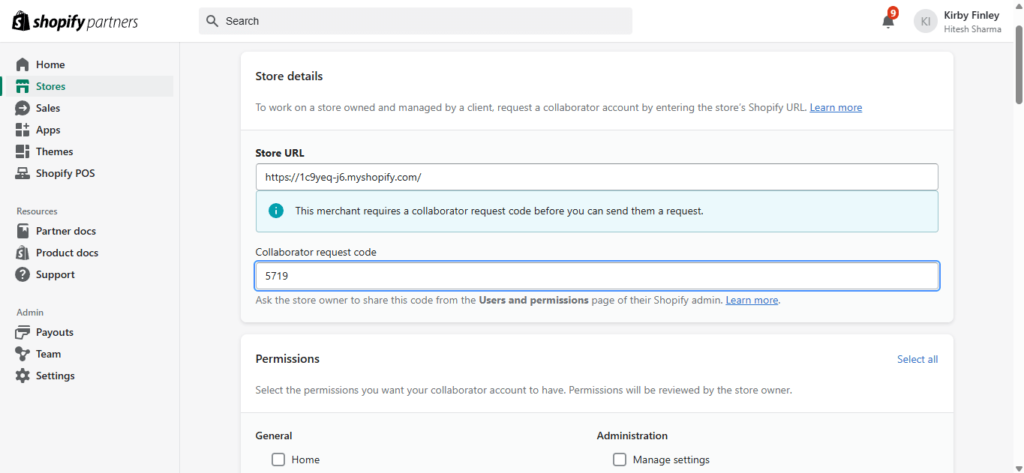
- Enter the collaborator request code. You can get the code by navigating to Users and Permissions > Collaborators > Collaborator Request Code.
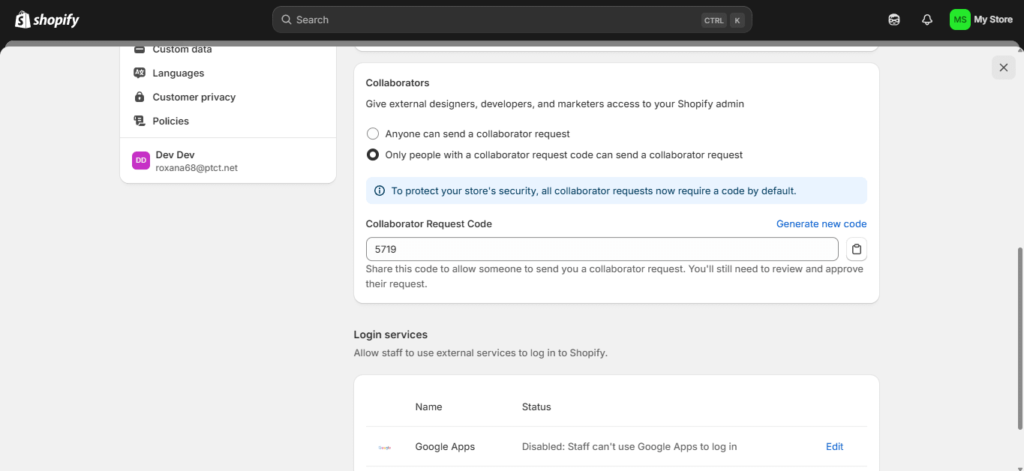
- Choose your permissions (e.g., themes, orders, products, settings).
- (Optional) Add a message to the store owner explaining why you need access.
- Click Save to submit your request.
- Select Managed Store in the partner dashboard to view the store status.
The store owner will be notified on their Shopify Admin to approve or deny your request.
Once submitted, the request alerts the store owner for review. Accurate submission ensures swift approval without delays or follow-up questions. Upon approval, collaborators gain immediate access, enabling secure, efficient work on the store.
How Do Store Owners Approve Collaborator Requests?
When a collaborator requests access, approval rests entirely with the store owner. Careful review guarantees that only vetted professionals enter the store.
Owners can verify permissions, adjust them if necessary, and grant access through Shopify dashboard. This balances security with the benefits of expert assistance.
Here’s how they can do it:
- Log in to their Shopify Admin.
- Click Settings > Users and permissions.
- Find the Collaborator requests section or check notifications.
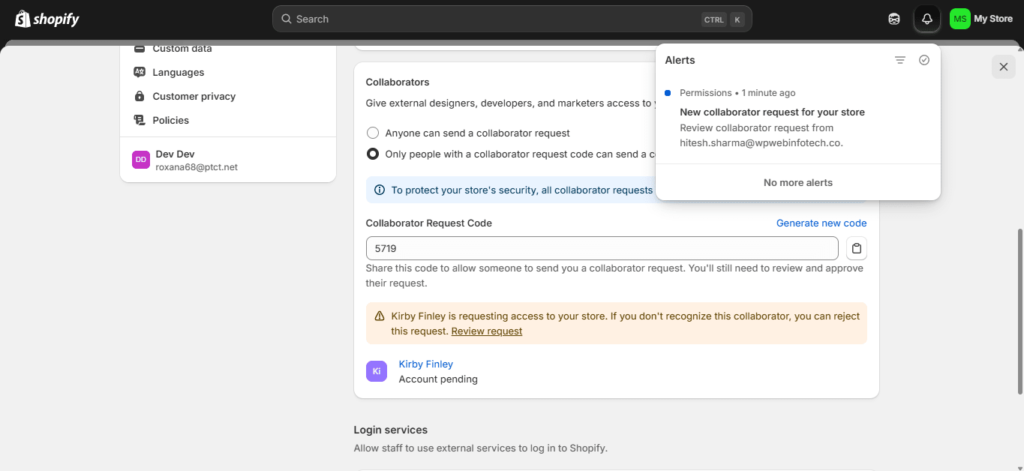
- Review the request details.
- Click Accept Request or Reject Request.
- (Optional) Modify permissions before approving.
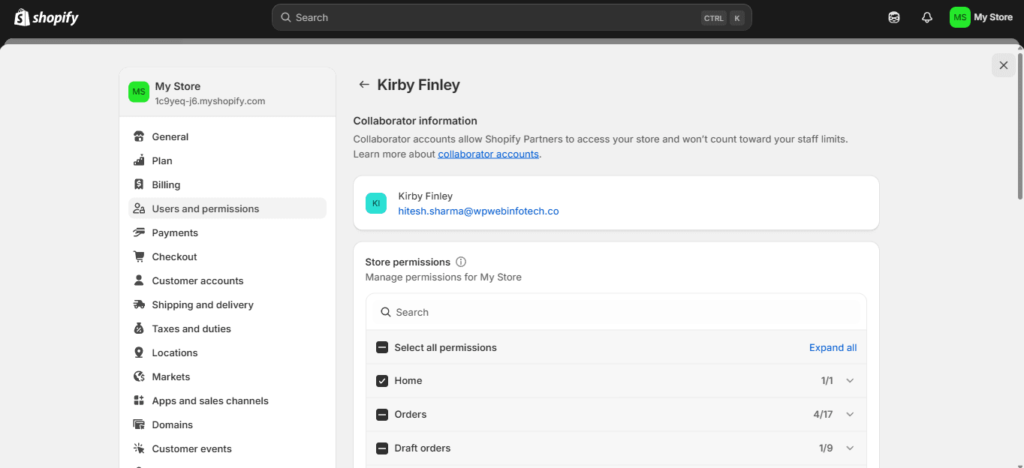
Once approved, collaborators gain store access limited to their assigned permissions. Just as you would when you add another admin to Shopify, store owners should regularly audit active collaborator accounts and adjust permissions when necessary to work with external partners without compromising sensitive data.
How to Manage Collaborator Access on Shopify?
Granting collaborator access is just the first step. Regular permission management confirms that only the right people are allowed into the store as projects evolve. Whether you manage updates in-house or use ongoing Shopify maintenance and support services, adjusting permissions and revoking inactive accounts ensures security stays aligned with current needs.
Monitoring active access is crucial for both security and data protection. It prevents unnecessary exposure of information by ensuring only authorized users have permission.
- Updating Permissions: Store owners can modify access by navigating to Users and Permissions.
- Removing Access: If a project is complete, store owners can remove collaborators to maintain security.
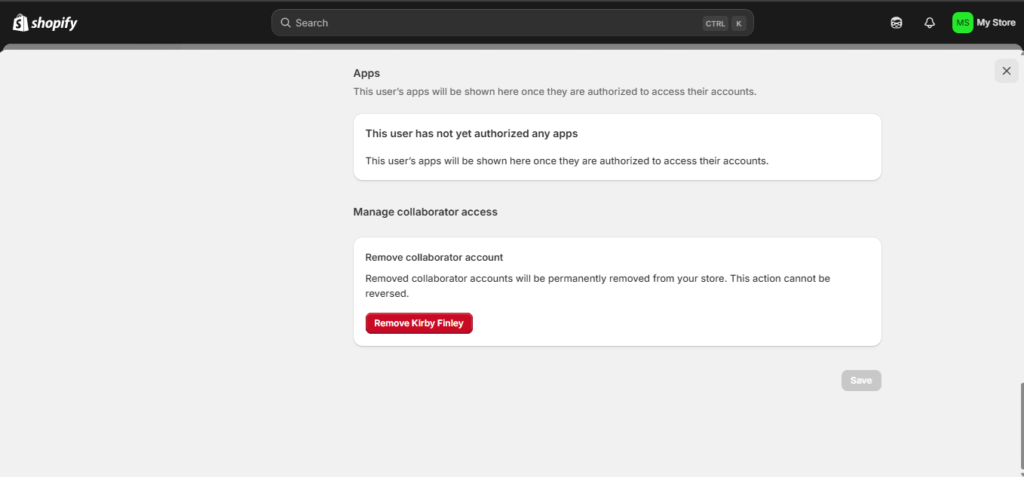
- Best Practices:
- Only grant necessary permissions.
- Revoke access when the work is done.
- Enable Two-Factor Authentication (2FA) to strengthen overall eCommerce security.
Regular permission reviews help store owners maintain full control. Grant only essential access and revoke it promptly when work ends. This balances efficient collaboration with strong store security and management.
Common Issues and Troubleshooting
While the process of requesting collaborator access is straightforward, issues can occasionally arise. It’s important to be prepared for common problems that might delay or prevent access. Understanding how to troubleshoot these issues can save time and ensure that everything runs smoothly. Here are some typical challenges and quick solutions to help you resolve them.
Request Not Received by Store Owner
Double-check the myshopify.com URL for accuracy. Ask the store owner to check their spam folder for the request.
Access Request Denied
If denied, clarify the specific permissions required. You may need to provide more context or modify your request before resubmitting.
Incorrect Permissions Granted
If incorrect permissions were granted, the store owner can fix this. They can adjust access levels in the Users and Permissions section. This is found in Shopify Admin.
Can’t Find Store URL
If you cannot find the store URL, contact the store owner. You can also check the Shopify store page. Make sure the URL is correct.
Solving these issues early prevents delays. Clear communication helps avoid problems. Following these steps keeps the process smooth and secure. These are solutions to common access problems.
Benefits of Collaboration on Shopify
Collaborating on a Shopify store unlocks efficiency, expertise, and scalability. Whether you’re working with developers, marketers, or business partners, this is true. Here’s how shared access drives results:
- Streamlined Workflows: Team members get tailored permissions. For example, they can access orders, products, or analytics. This lets teams work in parallel without sharing logins. Developers can implement code updates. Marketers can adjust campaigns. Everything happens in real time.
- Enhanced Security: Role-based access replaces risky password sharing. Limit collaborators to only the tools they need. For instance, fulfillment staff won’t see financial reports. This reduces human error and fraud risks.
- Expert Contributions: Specialists can onboard seamlessly. Designers tweak themes. SEO agencies optimize product pages. CSRs manage orders. None of them needs full admin access.
- Scalable Growth: Add partners effortlessly, such as marketing specialists for affiliate tracking or agencies providing B2B eCommerce development services for wholesale portals- and audit or revoke access anytime as needs change.
- Centralized Control: Owners keep complete oversight. The Shopify Admin dashboard tracks all collaborator activity. Brand consistency stays intact.
Shopify’s collaboration features make your store more dynamic. They let your internal teamwork go smoothly with outside partners. The best part? You stay in complete control. Security stays tight. Your creative vision stays protected. It’s the perfect balance of teamwork and control.
Conclusion
Requesting collaborator access in Shopify helps external professionals assist with store improvements. It also maintains security. With the steps we’ve discussed, collaborators can request the right level of access. Store owners can then easily manage and approve those requests.
Careful attention to permissions is key. Regular access management is also important. This helps businesses collaborate smoothly. It also keeps sensitive stored data protected. Understanding this process matters. It ensures you can help store owners effectively. You won’t compromise security. You’ll also maintain efficiency.
Need help in managing permissions? Consult with us today!
FAQs on Shopify Collaborator Access
1. What should I do if my collaborator's request is declined?

If your request is declined, reach out to the store owner to clarify why access is needed and what permissions you require. Providing additional details or adjusting your request may help. You can also resend the request after modifying the permissions.
2. Can I modify the permissions after my collaborator's request is approved?
Store owners can modify the permissions granted to collaborators at any time. If you need more access, the store owner can adjust it. They can also limit your permissions if needed. These changes are made in the Users and Permissions section. This is found in the Shopify Admin.
3. How do I remove collaborator access when my work is complete?
Once your work is complete, you have two options. You can ask the store owner to remove your access. Alternatively, you can remove it yourself from the Shopify Partner Dashboard. Store owners also have control. They can revoke access directly. This is done through the Shopify Admin under Users and Permissions.
4. Can a store owner approve collaborator access without a Shopify Partner account?
Store owners do not need a Shopify Partner account to approve collaborator requests. They should only be the store’s admin. They need access to the Users and Permissions section. From there, they can manage requests. They can also approve them.